




TechSee bridges the visual gap between you and Verizon Network Operation Centers.
It enables Verizon experts to guide you directly during equipment checks using a live video stream.
TechSee can help repair faults faster and there is often no requirement to have a technician on your site to troubleshoot.
During a phone conversation the Verizon NOC technician will send an SMS to your Smartphone with a link to access TechSee. TechSee will set up a remote visual session via your Smartphone using secure browser-based technology, which does not require an application download. You can then share the visual status of your equipment via your Smartphone camera.
It enables the Verizon technician to give effective guidance as if the technician is standing right behind you.


TechSee does not store any recordings or images during the session, the communication is only between you and the Verizon technician. All data transfers use a secure encrypted channel (TLSv1.2+). Only authorized Verizon personnel can send you an SMS invitation to join the video session and only after verbal permission from you.
Step1:
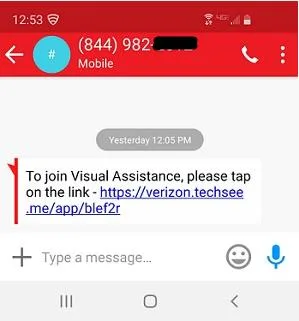
The technician will invite you by sending an SMS to your smartphone.
Step 2:
You will receive an SMS with the link https://verizon.techsee.me as shown here:


Step 3:
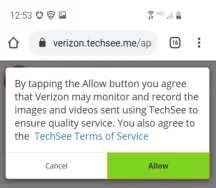
Once you click on the link, you will be asked to tap the Allow button:
Step 4:
Next you will be asked to give permission to access your mobile phone’s camera. Click on Allow.


Step 5:
At this stage you can start sharing visuals of your equipment with the Verizon technician from your mobile device. The technician will see what you see on your mobile and can directly guide you through additional checks.

During this video session, the technician can use a pointer to indicate what you need to do, where a cable should be inserted or similar. You will see the pointer on the screen of your mobile device:

During this video session, the technician can also capture an image to provide further instructions.
When connectivity is too weak to support a video stream, the Verizon technician can use your camera to take pictures instead.

Documents can be found on the Service Assurance User Guides page.
The latest version of this document can be always found here.
Go to our Customer Training Portal* to enroll in training or to download other user and reference guides.
The Verizon Enterprise Center portal is an easily accessible tool that offers customers the possibility of raising inquiries and managing different requests online.
The Verizon Enterprise Center portal supports customers with Repair related technical issues via repair tickets as well as customers with Invoice inquiries and Account Management requests, offering an alternative to emails and phone calls.
Introduction to Verizon Enterprise Center and information on how to register can be found on the Guides & Tutorials page here.

© 2022 Verizon. All rights reserved. The Verizon name and logo and all other names, logos and slogans identifying Verizon’s products and services are trademarks and service marks or registered trademarks and service marks of Verizon Trademark Services LLC or its affiliates in the United States and/or other countries. All other trademarks and service marks are the property of their respective owners.
*Registration is required
In dieser Anleitung genannte Seiten – Hersteller, Support und Downloads.
Besitzer und unser Team antworten in der Regel innerhalb eines Tages – und Ihre Frage hilft auch anderen weiter.
Stellen Sie die erste Frage — andere Nutzer oder unser Team antworten Ihnen.