


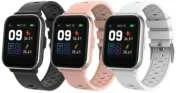
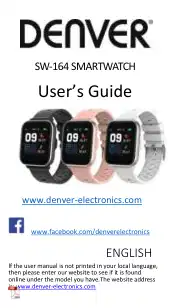

User’s Guide
www.facebook.com/denverelectronics
lf the user manual is not printed in your local language, then please enter our website to see if it is found online under the model you have.The website address is: www.denver-electronics.com

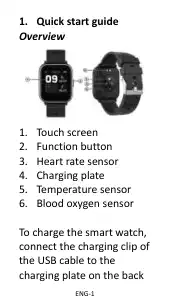
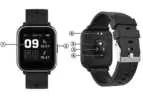
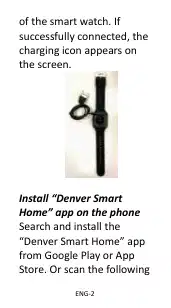
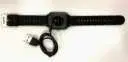
of the smart watch. If successfully connected, the charging icon appears on the screen.
Install “Denver Smart Home” app on the phone Search and install the “Denver Smart Home” app from Google Play or App Store. Or scan the following
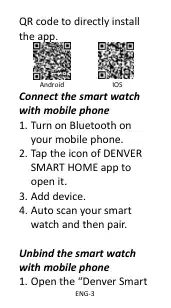
QR code to directly install the app.
Android IOS Connect the smart watch with mobile phone 1. Turn on Bluetooth on your mobile phone. 2. Tap the icon of DENVER SMART HOME app to open it. 3. Add device. 4. Auto scan your smart watch and then pair. Unbind the smart watch with mobile phone 1. Open the “Denver Smart
Home” app on your smart phone. 2. Long press your device. 3. Remove your device. Operation introduction
⚫ You can raise your hand or press the function button to light the screen.
⚫ Press and hold the watch face screen, then slide up or down to change the watch face.
⚫ Press and hold the function button to turn on the smart watch when powered off.
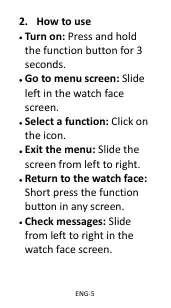
the function button for 3 seconds.
left in the watch face screen.
the icon.
screen from left to right.
⚫ Return to the watch face:
Short press the function button in any screen.
from left to right in the watch face screen.
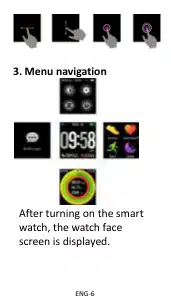
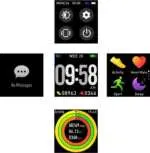
After turning on the smart watch, the watch face screen is displayed.
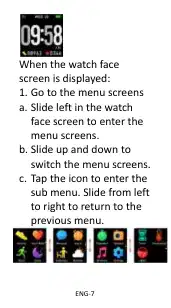
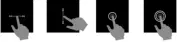
When the watch face screen is displayed: 1. Go to the menu screens a. Slide left in the watch
face screen to enter the menu screens. b. Slide up and down to
switch the menu screens. c. Tap the icon to enter the
sub menu. Slide from left to right to return to the previous menu.
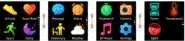
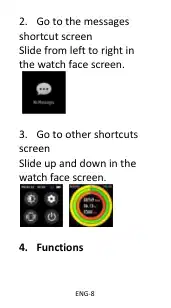
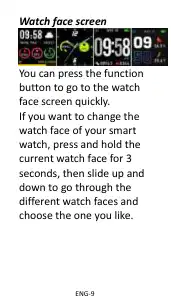
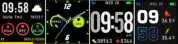
You can press the function button to go to the watch face screen quickly. If you want to change the watch face of your smart watch, press and hold the current watch face for 3 seconds, then slide up and down to go through the different watch faces and choose the one you like.
Watch face screen
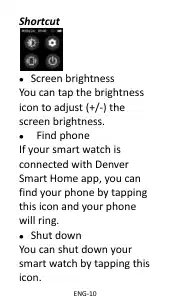
⚫ Screen brightness You can tap the brightness icon to adjust (+/-) the screen brightness.
⚫ Find phone If your smart watch is connected with Denver Smart Home app, you can find your phone by tapping this icon and your phone will ring.
⚫ Shut down You can shut down your smart watch by tapping this icon.
Shortcut
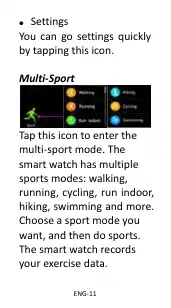
⚫ Settings You can go settings quickly by tapping this icon. Multi-Sport
Tap this icon to enter the multi-sport mode. The smart watch has multiple sports modes: walking, running, cycling, run indoor, hiking, swimming and more. Choose a sport mode you want, and then do sports. The smart watch records your exercise data.
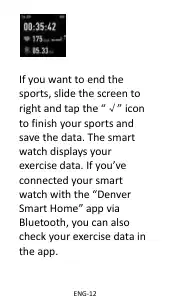
If you want to end the sports, slide the screen to right and tap the “√” icon to finish your sports and save the data. The smart watch displays your exercise data. If you’ve connected your smart watch with the “Denver Smart Home” app via Bluetooth, you can also check your exercise data in the app.
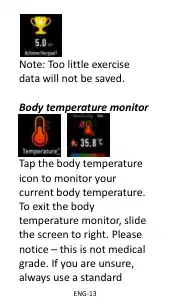
Tap the body temperature icon to monitor your current body temperature. To exit the body temperature monitor, slide the screen to right. Please notice – this is not medical grade. If you are unsure, always use a standard
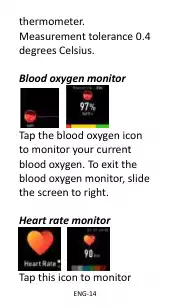
thermometer. Measurement tolerance 0.4 degrees Celsius. Blood oxygen monitor
Tap the blood oxygen icon to monitor your current blood oxygen. To exit the blood oxygen monitor, slide the screen to right. Heart rate monitor
Tap this icon to monitor
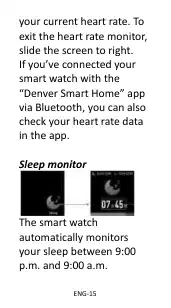
your current heart rate. To exit the heart rate monitor, slide the screen to right. If you’ve connected your smart watch with the “Denver Smart Home” app via Bluetooth, you can also check your heart rate data in the app. Sleep monitor
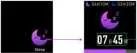
The smart watch automatically monitors your sleep between 9:00 p.m. and 9:00 a.m.
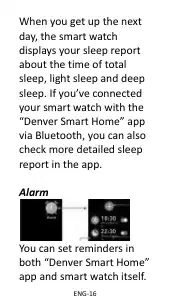
When you get up the next day, the smart watch displays your sleep report about the time of total sleep, light sleep and deep sleep. If you’ve connected your smart watch with the “Denver Smart Home” app via Bluetooth, you can also check more detailed sleep report in the app. Alarm
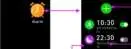
You can set reminders in both “Denver Smart Home” app and smart watch itself.
When alarm time is up, the alarm icon is animated and the smart watch vibrates. Messages
Slide the watch face from left to right, and then you can check your phone calls, SMS, QQ, WeChat, Whatsapp, Facebook and Twitter notifications, etc. The messages will be automatically deleted after reading.
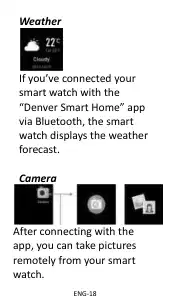
If you’ve connected your smart watch with the “Denver Smart Home” app via Bluetooth, the smart watch displays the weather forecast. Camera
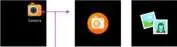
After connecting with the app, you can take pictures remotely from your smart watch.
Weather
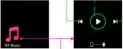
Tap the music icon to enter the music playback control interface. You can select the previous/next song, and play/pause music. To exit music playback control, slide the screen from left to right. Sedentary reminder
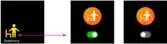
Music playback control
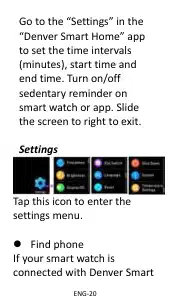
Go to the “Settings” in the “Denver Smart Home” app to set the time intervals (minutes), start time and end time. Turn on/off sedentary reminder on smart watch or app. Slide the screen to right to exit. Settings
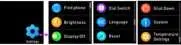
Tap this icon to enter the settings menu. ⚫ Find phone If your smart watch is connected with Denver Smart
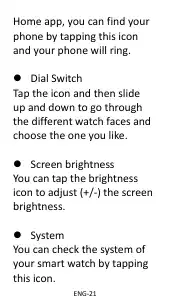
Home app, you can find your phone by tapping this icon and your phone will ring.
⚫ Dial Switch Tap the icon and then slide up and down to go through the different watch faces and choose the one you like.
⚫ Screen brightness You can tap the brightness icon to adjust (+/-) the screen brightness. ⚫ System You can check the system of your smart watch by tapping this icon.
⚫ Languages You can set language here.
⚫ Shut down You can shut down your smart watch by tapping this icon.
⚫ Reset You can reset your smart watch by tapping this icon.
⚫ Display Off You can set time to turn off display.
⚫ Temperature settings You can set temperature unit here.

Please notice - All products are subject to change without any notice. We take reservations for errors and omissions in the manual.
COPYRIGHT DENVER
ELECTRONICS A/S
Electric and electronic equipment and included batteries contains materials, components and substances that can be hazardous to your health
and the environment, if the waste material (discarded electric and electronic equipment and batteries) is not handled correctly.
Electric and electronic equipment and batteries is marked with the crossed out trash can symbol, seen below. This symbol signifies that electric and electronic equipment and batteries should not be disposed of with other household waste, but should be disposed of separately. As the end user it is
important that you submit your used batteries to the appropriate and designated facility. In this manner you make sure that the batteries are recycled in accordance with legislature and will not harm the environment. All cities have established collection points, where electric and electronic equipment and batteries can either be submitted free of charge at recycling stations and other collection sites or be collected from the households. Additional
information is available at the technical department of your city.
Hereby, Inter Sales A/S declares that the radio equipment type SW-164 is in compliance with Directive 2014/53/EU. The full text of the EU declaration of conformity is available at the following internet address: www.denver-electronics.co m, and then click the search icon on top line of website. Write model number: SW-164. Now enter product page, and
red directive is found under downloads/other downloads.
DENVER ELECTRONICS A/S Omega 5A, Soeften DK-8382 Hinnerup Denmark www.facebook.com/denver electronics

www.facebook.com/denverelectronics
Bedienungsanleitung
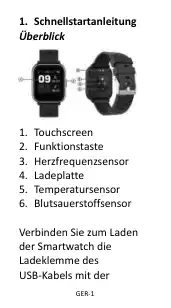
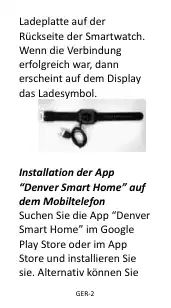
Ladeplatte auf der Rückseite der Smartwatch. Wenn die Verbindung erfolgreich war, dann erscheint auf dem Display das Ladesymbol.
Installation der App “Denver Smart Home” auf dem Mobiltelefon Suchen Sie die App “Denver Smart Home” im Google Play Store oder im App Store und installieren Sie sie. Alternativ können Sie
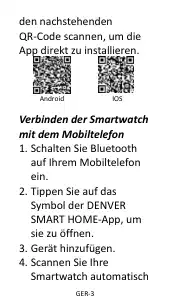
den nachstehenden QR-Code scannen, um die App direkt zu installieren.
Android IOS Verbinden der Smartwatch mit dem Mobiltelefon 1. Schalten Sie Bluetooth auf Ihrem Mobiltelefon ein. 2. Tippen Sie auf das Symbol der DENVER SMART HOME-App, um sie zu öffnen. 3. Gerät hinzufügen. 4. Scannen Sie Ihre Smartwatch automatisch
und koppeln Sie sie dann. Trennen der Verbindung zwischen Smartwatch und Mobiltelefon 1. Öffnen Sie die App „Denver Smart Home“ auf Ihrem Smartphone. 2. Drücken Sie lange auf Ihr Gerät. 3. Entfernen Sie Ihr Gerät. Funktionsanleitung ⚫ Sie können Ihre Hand
heben oder die Funktionstaste drücken, um das Display zu
In dieser Anleitung genannte Seiten – Hersteller, Support und Downloads.
Besitzer und unser Team antworten in der Regel innerhalb eines Tages – und Ihre Frage hilft auch anderen weiter.
Stellen Sie die erste Frage — andere Nutzer oder unser Team antworten Ihnen.