
DE
Offizielle Bedienungsanleitung

GENKI Waveform True Wireless Earbuds (WAVEFORM HTGW)

5 Seiten·204 KB·In-Ear-Kopfhörer·PDF·EN
GENKI Waveform True Wireless Earbuds (WAVEFORM HTGW)
Inhaltsverzeichnis 7 Abschnitte User Manual for HTGW · What’s inside · 3. Charge the Earbuds and case · Wing tips Foam Tips Silicone tips · … AnzeigenAusblenden
Page 1 of the GENKI Waveform True Wireless Earbuds (WAVEFORM HTGW) user manual — What’s inside
Seite 1 · Zum Vergrößern klicken
Seite 1

User Manual for HTGW

GENKI Waveform True Wireless Earbuds (WAVEFORM HTGW) — User Manual for HTGW diagram (page 1)
Abb. 1 · User Manual for HTGW

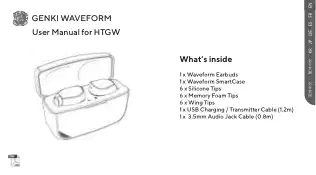
What’s inside

1 x Waveform Earbuds 1 x Waveform SmartCase 6 x Silicone Tips 6 x Memory Foam Tips 6 x Wing Tips 1 x USB Charging / Transmitter Cable (1.2m) 1 x 3.5mm Audio Jack Cable (0.8m)

Page 2 of the GENKI Waveform True Wireless Earbuds (WAVEFORM HTGW) user manual — Wing tips Foam Tips Silicone tips
Seite 2 · Zum Vergrößern klicken
Seite 2

Getting Started 1. Peel off the insulation tape under the earbuds. 2. Wearing Please find the right fit with the ear tips and wing tips the wing tips are to be used with the eartips together.

3. Charge the Earbuds and case

Solid Green LED USB Charging with

4. Connect to your Devices Direct Bluetooth 5.3 Connection For a convenient wireless connection to your Bluetooth-compatible device: 1. Open the SmartCase and remove the Waveform Earbuds; the lights on the earbuds turn on and blink, indicating pairing mode is active. 2. Check your Bluetooth settings in the source device (smartphone, tablet, computer, game console) and pair to “Waveform.”

Big ear Small ear Wrong Way

Wing tips Foam Tips Silicone tips

Smart Case aptX Adaptive Connection

1. Plug the SmartCase into the PS5. 2. Open the case without taking the buds out; the case should blink in green and blue. 3. Wait for the green light on the case to disappear. 4. Take out the earbuds.

Wingtips must align with

the dent on the speaker.

to enhance ANC performance

Use with Foam or

Show 6 more labels / short text on this page
Wireless Charging · power source · Passive noise islotaion · For easy listening · and comfort · Silicone tips
Page 3 of the GENKI Waveform True Wireless Earbuds (WAVEFORM HTGW) user manual — Right Ear Left Ear
Seite 3 · Zum Vergrößern klicken
Seite 3

DualStream Connection (Bluetooth and SmartCase)

5. How to use the Waveform?

1. Connect the SmartCase to the console. 2. Open the case without taking the buds out SmartCase will blink in green and blue to look for the Waveform and the DualStream Connection. 3. Wait for the green light on the case to disappear. 4. Take out the earbuds. 5. Look for “Waveform DualStream” Bluetooth connection on the secondary audio source and connect 6. Hold the right ear to max out the volume if the volume is too low for PS5.

Right Ear Left Ear

Volume + Volume -

Play/ Pause Pickup/ End Call Play/ Pause Pickup/ End Call

Next Song Previous Song 2 2

ANC/ Transparent/ Regular Voice Assistant / Mic Change (see 5.)

SmartCase Control The SmartCase controls are only available when it is connected via type C cable.

Change Waveform/ SmartCase mic 2 Reset Long press Long press

Restart Waveform DualStream pairing

Touch sensor · Hold Hold · Disconnect Waveform

Page 4 of the GENKI Waveform True Wireless Earbuds (WAVEFORM HTGW) user manual — Left Ear
Seite 4 · Zum Vergrößern klicken
Seite 4
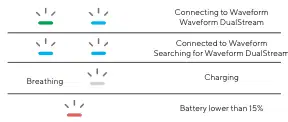
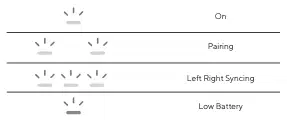
6. Lights Indicator Location of the lights

When SmartCase is connected via type C cable:

Light on the SmartCase
GENKI Waveform True Wireless Earbuds (WAVEFORM HTGW) — Left Ear diagram (page 4)
Abb. 2 · Left Ear

The lights are located on the SmartCase and Waveform.

When connect directly: 7. Smartcase Microphone By delegating the microphone function to the case, you no longer need to compensate audio quality for voice chat. After connecting to the smartcase.

Light on the Waveform
GENKI Waveform True Wireless Earbuds (WAVEFORM HTGW) — Left Ear diagram (page 4)
Abb. 3 · Left Ear
GENKI Waveform True Wireless Earbuds (WAVEFORM HTGW) — Left Ear diagram (page 4)
Abb. 4 · Left Ear

Left Ear

Change Waveform/ SmartCase mic 3

Status · Status

Page 5 of the GENKI Waveform True Wireless Earbuds (WAVEFORM HTGW) user manual — Left Ear
Seite 5 · Zum Vergrößern klicken
Seite 5
8. Disconnect the device To disconnect the Bluetooth connection on the Waveform from a device, there are 2 ways to do it: 1. Hold the left and right ear for 5 seconds. 2. Leave the earbuds in the case and long press the 2 button for 5 secs
11. Specifications Technical Features

Bluetooth 5.3 with aptX Adaptive technology DualStream Wireless and USB-C charging Bluetooth Codecs

aptX – Adaptive aptX – Classic AAC SBC Bluetooth Profiles

9. Reset to factory setting 1. Put the earbuds into the SmartCase. 2. Connect the earbuds with the cable to a game console or computer. 3. Hold the 1 button on the case for 15 sec. 4. Wait for the earbuds to sync.

A2DP v1.3.1 AVRCP v1.6.1 HFP v1.7.1 HSP v1.2 BLE GATT (Generic Attribute Profile) Frequency Band

10. App Feature Our app “Genki Waveform” can be download on Apple store and Google Play.

Tx mode: 2402MHz to 2480MHz, ISM Band Rx mode: 2402MHz to 2480MHz, ISM Band RF output power < 0r =10.0 dBm Driver Units 10mm Dynamic Drive with Balanced Armature Frequency Range 10Hz to 20kHz Distortion (THD)

App Feature Version 0.4.5 Active Noise Canc elling Control Equalizer Presets Customise Equalizer Show Battery Status Firmware Update

Up to 14 hours Bluetooth + 28 hours case Weight 6.5g each earbud, 47g for charging case

Frage zu GENKI Waveform True Wireless Earbuds (WAVEFORM HTGW) stellen

Besitzer und unser Team antworten in der Regel innerhalb eines Tages – und Ihre Frage hilft auch anderen weiter.

Add your email to get notified when it’s answered — no spam, ever.

0 questions
Noch keine Fragen zu GENKI Waveform True Wireless Earbuds (WAVEFORM HTGW)

Stellen Sie die erste Frage — andere Nutzer oder unser Team antworten Ihnen.

Originaldokument

GENKI Waveform True Wireless Earbuds (WAVEFORM HTGW) PDF-Anleitung

5 Seiten·204 KB·In-Ear-Kopfhörer·PDF
Klicken Sie oben auf eine Seite, um sie hier zu öffnen
Seite 1 / …
100%
Seiten werden geladen…