DE
Logitech logo
Offizielle Bedienungsanleitung

Logitech Zone True Wireless Earbuds Basic 2

292 Seiten·4.7 MB·In-Ear-Kopfhörer·PDF·EN
Logitech Zone True Wireless Earbuds Basic 2
Inhaltsverzeichnis 35 Abschnitte LOGITECH ZONE TRUE WIRELESS · Setup Guide · KNOW YOUR PRODUCT · WHAT’S IN THE BOX · … AnzeigenAusblenden
Page 1 of the Logitech Zone True Wireless Earbuds Basic 2 user manual — LOGITECH ZONE TRUE WIRELESS
Seite 1 · Zum Vergrößern klicken
Seite 1

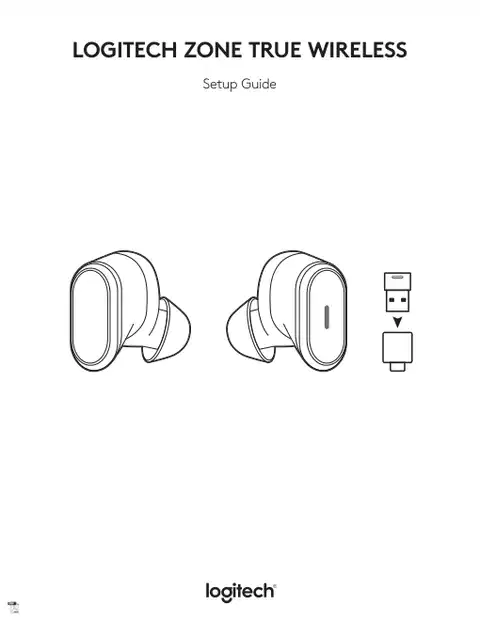
LOGITECH ZONE TRUE WIRELESS

Setup Guide

Page 2 of the Logitech Zone True Wireless Earbuds Basic 2 user manual — LOGITECH ZONE TRUE WIRELESS
Seite 2 · Zum Vergrößern klicken
Seite 2
Page 2 of the Logitech Zone True Wireless Earbuds Basic 2 user manual — LOGITECH ZONE TRUE WIRELESS
Page 3 of the Logitech Zone True Wireless Earbuds Basic 2 user manual — KNOW YOUR PRODUCT
Seite 3 · Zum Vergrößern klicken
Seite 3

KNOW YOUR PRODUCT

USB-C port for charging cable

Show 13 more labels / short text on this page
Earbud light indicator · Light indicator · Control button · USB-A receiver · Wind defense · USB-C adapter · fabric · Replaceable eargels · Noise-canceling mics · Bluetooth® pairing · button · Qi-wireless charging · Case light indicator
Page 4 of the Logitech Zone True Wireless Earbuds Basic 2 user manual — USB-C
Seite 4 · Zum Vergrößern klicken
Seite 4

WHAT’S IN THE BOX

1 Left & right ear buds 2 Replaceable eargels (total of 3 pairs): — Small left & right eargels without ear fins — Medium left & right eargels with ear fins

S

S L L

M M

(premounted on the earbuds) — Large left & right eargels with ear fins 3 Cloth travel bag 4 Wireless charging case 5 User documentation 6 USB-A receiver 7 USB-C to A adapter 8 USB-C to A charging cable (0 79 ft)

USB-A USB-C USB-A | USB-C

CHARGING

Charging via USB cable

1 Place the earbuds in the charging case and close the lid

USB-A

2 Plug the USB-C cable end into the USB-C port on the front of the charging case

USB-C

3 Plug the USB-A end into the USB-A charging port on your computer or plug the USB-A end into the USB-C adapter and plug the USB-C adapter into the USB-C port on your computer

4 Case light Indicator will be a pulsing, white light for charging

5 Case light Indicator will be solid white when fully charged

— 2 hrs 45 mins for full earbuds charge — 3 hrs for full case charge — 5 mins will give you 2 hrs music time

6 Earbuds can be used with receiver and Bluetooth® paired while charging

Charging via Qi wireless charger

1 Place the charging case on top of any Qi wireless charging pad *

2 Case indicator light will be a pulsing, white light when charging

3 Case Indicator light will be solid white when fully charged

* Qi wireless charging base is not included

(ANC off)

Page 5 of the Logitech Zone True Wireless Earbuds Basic 2 user manual — ZONE
Seite 5 · Zum Vergrößern klicken
Seite 5

HOW TO SETUP YOUR DEVICE

1 Remove the earbuds from the charging case

2 Insert the earbuds into your ears

PAIR TO COMPUTER VIA USB RECEIVER

1 USB-A Insert the USB-A receiver into the computer USB-A port

USB-C Insert the USB-A receiver into the USB-C adapter Then insert the adapter into the computer USB-C port

USB-A

USB-C

2 Earbuds are pre-paired to the receiver included in the box Once successfully paired, the light indicator on the receiver will remain solid

PAIR TO SMARTPHONE VIA BLUETOOTH ®

1 Press the Bluetooth® pairing button in the charging case for 3 seconds Earbud light indicator will flash white rapidly

2 Open Bluetooth® settings on your device

3 sec.

3 Select Zone True Wireless in discoverable devices

ZONE

TRUE WIRELESS

4 Once successfully paired, the light indicator will turn solid white

Page 6 of the Logitech Zone True Wireless Earbuds Basic 2 user manual — OR
Seite 6 · Zum Vergrößern klicken
Seite 6

FIND YOUR PERFECT FIT

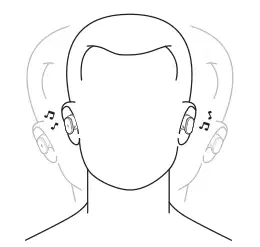
For optimized performance of ANC and comfort , select among the three eargel sizes (S, M, L) to find the ones that best fit your ears Earbuds ship with medium eargels

1 Place the earbuds firmly within your ears Adjust angle and depth of the earbuds for the best seal and comfort

2 Size down if you feel too much pressure on your ear, or size up if the earbuds are too loose

Left Right

— NoteIt is common to use different sized

S

M

eargels for different sides of your ears

OR

S

S

OR

M

Logitech Zone True Wireless Earbuds Basic 2 — OR diagram (page 6)
Abb. 1

— The earbuds should remain secured and tight

even after shaking your head in all directions — Play the same music as a fair comparison of

3 Fit Trial · noise isolation

Page 7 of the Logitech Zone True Wireless Earbuds Basic 2 user manual — CALL AND MUSIC CONTROLS
Seite 7 · Zum Vergrößern klicken
Seite 7

CALL AND MUSIC CONTROLS

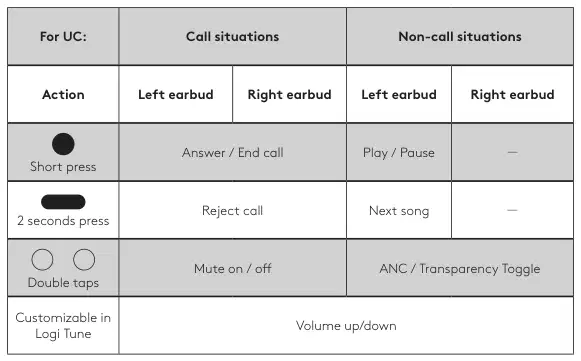
For UC:Call situationsNon-call situations ActionLeft earbudRight earbudLeft earbudRight earbud Short pressAnswer / End callPlay / Pause– 2 seconds pressReject callNext song– Double tapsMute on / offANC / Transparency Toggle Customizable in Logi TuneVolume up/down
Logitech Zone True Wireless Earbuds Basic 2 — CALL AND MUSIC CONTROLS diagram (page 7)
Abb. 2
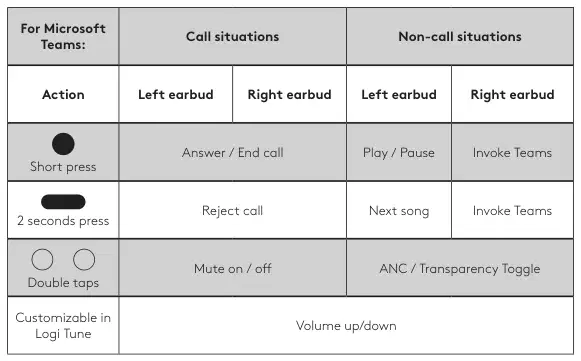
For Microsoft Teams:Call situationsNon-call situations ActionLeft earbudRight earbudLeft earbudRight earbud Short pressAnswer / End callPlay / PauseInvoke Teams 2 seconds pressReject callNext songInvoke Teams Double tapsMute on / offANC / Transparency Toggle Customizable in Logi TuneVolume up/down
Logitech Zone True Wireless Earbuds Basic 2 — CALL AND MUSIC CONTROLS diagram (page 7)
Abb. 3

the last active device will override the other

Page 8 of the Logitech Zone True Wireless Earbuds Basic 2 user manual — EARBUD LIGHT INDICATOR
Seite 8 · Zum Vergrößern klicken
Seite 8

ACTIVE NOISE CANCELLATION (ANC)

ANC blocks out the noise around you to help you concentrate on the task at hand

2x R/L

1 Double tap the left or right earbud under non-call situations to switch between ANC and Transparency mode

2 There will be a voice prompt when turning ANC or Transparency mode on

ANC

3 You can also switch between ANC and Transparency mode via Logi Tune

EARBUD LIGHT INDICATOR

Controlling busy light via Logi Tune

Busy light is disabled by default To activate it:

1 Open Logi Tune

2 Select “Settings” tab

3 Click on “Busy light” and select "Active on call"

EarbudStatus WhiteFlashingBluetooth® pairing mode SolidActive call*

* Download Logi Tune to activate the busy light

Bluetooth® · pairing mode · Active call

Page 9 of the Logitech Zone True Wireless Earbuds Basic 2 user manual — CASE LIGHT INDICATOR
Seite 9 · Zum Vergrößern klicken
Seite 9

RECEIVER LIGHT INDICATOR

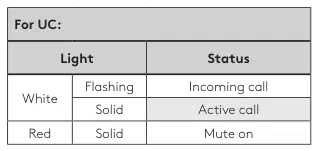
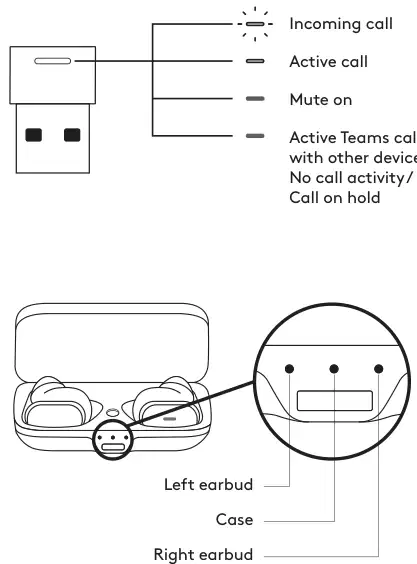
For UC: LightStatus WhiteFlashingIncoming call SolidActive call RedSolidMute on
Logitech Zone True Wireless Earbuds Basic 2 — RECEIVER LIGHT INDICATOR diagram (page 9)
Abb. 4
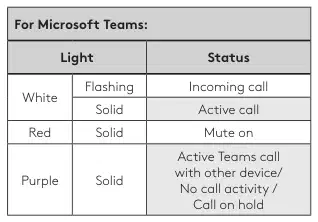
For Microsoft Teams: LightStatus WhiteFlashingIncoming call SolidActive call RedSolidMute on PurpleSolidActive Teams call with other device/ No call activity / Call on hold
Logitech Zone True Wireless Earbuds Basic 2 — RECEIVER LIGHT INDICATOR diagram (page 9)
Abb. 5
Logitech Zone True Wireless Earbuds Basic 2 — RECEIVER LIGHT INDICATOR diagram (page 9)
Abb. 6

Active Teams call with other device/ No call activity / Call on hold

CASE LIGHT INDICATOR

Left LED lightBattery status of the left earbud
Middle LED lightBattery status of the charging case
Right LED lightBattery status of the right earbud

Incoming call · Active call · Mute on

Page 10 of the Logitech Zone True Wireless Earbuds Basic 2 user manual — RECEIVER LIGHT INDICATOR
Seite 10 · Zum Vergrößern klicken
Seite 10
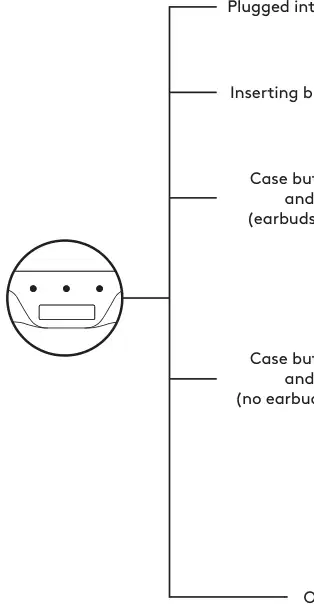
StateLightStatus Plugged into power sourceWhiteSolidFully charged PulsingNot fully charged Inserting buds in the caseWhitePulsing for 3 secondsEarbud inserted in the case Case button pressed and released (earbuds in the case)WhiteSolid for 3 secondsFully charged Pulsing for 3 secondsCharging RedSolidCase battery <20% Case button pressed and released (no earbuds in the case)White (All lights on)Solid for 3 secondsCase battery between 80-100% White (Middle and left light on)Case battery between 50-79% White (Left light on only)Case battery between 20-49% RedCase battery <20% OthersWhiteBlinkingPairing mode RedBlinking while in over-the-air (OTA) modeDevice frimware update PulsingCharging error WhiteBlinking while in pairing mode and blinking WHITE 3 times to confrim factory resetFactory reset
Logitech Zone True Wireless Earbuds Basic 2 — RECEIVER LIGHT INDICATOR diagram (page 10)
Abb. 7

Plugged into power source

Logitech Zone True Wireless Earbuds Basic 2 — RECEIVER LIGHT INDICATOR diagram (page 10)
Abb. 8

Inserting buds in the case

3 sec.

Earbud inserted in the case

3 sec.

and release (earbuds in the case)

3 sec.

Case battery between 80-100%

3 sec.

Case battery between 50-79%

3 sec.

and release (no earbuds in the case)

3 sec.

Case battery between 20-49%

3 sec.
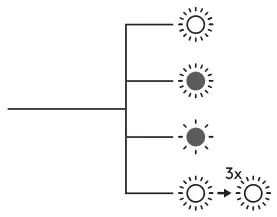
Logitech Zone True Wireless Earbuds Basic 2 — RECEIVER LIGHT INDICATOR diagram (page 10)
Abb. 9
Show 13 more labels / short text on this page
Fully charged · Not fully charged · Fully charged · Case button pressed · Charging · Case battery <20% · Case button pressed · Case battery <20% · Pairing mode · Device firmware update · Others · Charging error · Factory reset
Page 11 of the Logitech Zone True Wireless Earbuds Basic 2 user manual — FACTORY RESET
Seite 11 · Zum Vergrößern klicken
Seite 11

LOGI TUNE

Logi Tune helps boost your earbud performance with periodic software and firmware updates

www.logitech.com/tune Logi Tune

Learn more and download Logi Tune at www logitech com/tune, the Apple App Store® or Google Play™ store

ADJUSTING SIDETONE

Sidetone lets you hear your own voice during conversations so you are aware of how loud you are talking In Logi Tune, select the sidetone feature, and adjust the dial accordingly

– A higher number means you hear more external sound

– A lower number means you hear less external sound

AUTO SLEEP TIMER

By default, your earbuds will automatically power off when not in use for one hour Adjust the sleep timer in Logi Tune

RECONNECT EARBUDS

Reconnect earbuds to receiver via Logi Tune

1 Plug USB-A receiver into computer

2 Open Logi Tune

3 Select the receiver from the dashboard Press “Reconnect earbuds”

4 To initiate Bluetooth® pairing, press and hold the Bluetooth® pairing button in the charging case for 3 seconds The light indicator on the receiver will flash white

5 Once successfully paired, the light indicator on the receiver will remain solid white

FACTORY RESET

1 Place the left and right earbuds in the charging case

2 Press the Bluetooth® pairing button in the case for 15 seconds

3 The case light indicators will blink 3 times in white to confirm the reset

Page 12 of the Logitech Zone True Wireless Earbuds Basic 2 user manual — www.logitech.com/support/zonetruewireless
Seite 12 · Zum Vergrößern klicken
Seite 12

DIMENSIONS

Earbuds:

Height x Width x Depth: 15 9 x 27 4 x 26 3 mm Weight (a pair of earbuds): 13 g

Charging case:

Height x Width x Depth25 0 x 39 8 x 74 5 mm Weight: 46 g

Receiver:

Height x Width x Depth21 5 x 13 6 x 6 0 mm

Adapter:

Height x Width x Depth25 2 x 16 5 x 9 5 mm

SYSTEM REQUIREMENTS

Works with common calling applications across almost all platforms and operating systems

Works with Windows®, Mac, or Chrome™ based computer via USB-C, USB-A, Bluetooth® and iOS or Android™ Bluetooth® enabled devices

TECHNICAL SPECIFICATIONS

Microphone TypeOmni-directional, dual MEMS mics array with beamforming plus an inward-facing mic
Frequency response (Earbuds)20-20kHz (music mode), 100-8kHz (talk mode)
Frequency response (Microphone)100-8kHz
Battery typeBuilt-in battery (Lithium ion)
Battery life (talk time)Up to 6 hrs (ANC on), up to 6 5 hrs (ANC off)
Battery life (listening time)Up to 7 hrs (ANC on), up to 12 hrs (ANC off)
Bluetooth ® version5 0
Wireless rangeUp to 30 m / 100 ft (open field line of sight)

Qi Wireless charging enabled

USB-A to C charging cable0 79 ft (24 cm)

www.logitech.com/support/zonetruewireless

© 2021 Logitech Logitech, Logi and the Logitech logo are trademarks or registered trademarks of Logitech Europe S A and/or its aliates in the U S and other countries Apple and the Apple logo are trademarks of Apple Inc , registered in the U S and other countries and regions App Store is a service mark of Apple Inc Google Play and the Google Play logo are trademarks of Google LLC The Bluetooth® word mark and logos are registered trademarks owned by Bluetooth SIG, Inc and any use of such marks by Logitech is under license

Frage zu Logitech Zone True Wireless Earbuds Basic 2 stellen

Besitzer und unser Team antworten in der Regel innerhalb eines Tages – und Ihre Frage hilft auch anderen weiter.

Add your email to get notified when it’s answered — no spam, ever.

0 questions
Noch keine Fragen zu Logitech Zone True Wireless Earbuds Basic 2

Stellen Sie die erste Frage — andere Nutzer oder unser Team antworten Ihnen.

Originaldokument

Logitech Zone True Wireless Earbuds Basic 2 PDF-Anleitung

292 Seiten·4.7 MB·In-Ear-Kopfhörer·PDF
Klicken Sie oben auf eine Seite, um sie hier zu öffnen
Seite 1 / …
100%
Seiten werden geladen…