



Instrukcja obsługi/Gebruiksaanwijzing

at the edge to keep the unit from falling. Make sure the physical barrier is not a trip hazard. 4. Only use as described in this manual. Only use attachments recommended or sold by the manufacturer. 5. Please make sure your power supply source voltage matches the power voltage marked on the Docking Station. 6. For INDOOR household use ONLY. Do not use the Appliance in outdoor, commercial or industrial environments. 7. Use only the original rechargeable battery and Docking Station provided with the Appliance from the manufacturer. Non-rechargeable batteries are prohibited. 8. Do not use without dust bin and/or filters in place. 9. Do not operate the Appliance in an area where there are lit candles or fragile objects. 10. Do not use in extremely hot or cold environments (below -5˚C/23˚F or above 40˚C/104˚F). 11. Keep hair, loose clothing, fingers, and all parts of body away from any openings and moving parts. 12. Do not operate the Appliance in a room where an infant or child is sleeping. 13. Do not use Appliance on wet surfaces or surfaces with standing water. 14. Do not allow the Appliance to pick up large objects like stones, large pieces of paper or any item that may clog the Appliance.
1. This Appliance can be used by children aged from 8 years and above and persons with reduced physical, sensory or mental capabilities or lack of experience and knowledge if they have been given supervision or instruction concerning use of the Appliance in a safe way and understand the hazards involved. Children shall not play with the Appliance. Cleaning and user maintenance shall not be made by children without supervision. 2. Clear the area to be cleaned. Remove power cords and small objects from the floor that could entangle the Appliance. Tuck rug fringe under the rug base, and lift items such as curtains and tablecloths off the floor. 3. If there is a drop off in the cleaning area due to a step or stairs, you should operate the Appliance to ensure that it can detect the step without falling over the edge. It may become necessary to place a physical barrier

15. Do not use Appliance to pick up flammable or combustible materials such as gasoline, printer or copier toner, or use in areas where they may be present. 16. Do not use Appliance to pick up anything that is burning or smoking, such as cigarettes, matches, hot ashes, or anything that could cause a fire. 17. Do not put objects into the suction intake. Do not use if the suction intake is blocked. Keep the intake clear of dust, lint, hair, or anything that may reduce air flow. 18. Take care not to damage the power cord. Do not pull on or carry the Appliance or Docking Station by the power cord, use the power cord as a handle, close a door on the power cord, or pull power cord around sharp edges or corners. Do not run Appliance over the power cord. Keep power cord away from hot surfaces. 19. If the power cord is damaged, it must be replaced by the manufacturer or its service agent in order to avoid a hazard. 20. Do not use the Docking Station if it is damaged. The power supply is not to be repaired and not to be used any longer if it is damaged or defective. 21. Do not use with a damaged power cord or receptacle. Do not use the Appliance or Docking Station if it is not working properly, has been dropped, damaged, left outdoors, or come in contact with water. It must be repaired by the manufacturer or its service agent in order to avoid a hazard. 22. Turn OFF the power switch before cleaning or
maintaining the Appliance. 23. The plug must be removed from the receptacle before cleaning or maintaining the Docking Station. 24. Remove the Appliance from the Docking Station, and turn OFF the power switch to the Appliance before removing the battery for disposal of the Appliance. 25. The battery must be removed and discarded according to local laws and regulations before disposal of the Appliance. 26. Please dispose of used batteries according to local laws and regulations. 27. Do not incinerate the Appliance even if it is severely damaged. The batteries can explode in a fire. 28. When not using the Docking Station for a long period of time, please unplug it. 29. The Appliance must be used in accordance with the directions in this Instruction Manual. ECOVACS ROBOTICS cannot be held liable or responsible for any damages or injuries caused by improper use. 30. The robot contains batteries that are only replaceable by skilled persons. To replace the robot’s battery, please contact Customer Service. 31. If the robot will not be used for a long time, power OFF the robot for storage and unplug the Docking Station. 32. WARNING: For the purposes of recharging the battery, only use the detachable supply unit CH1822 provided with the Appliance, or CH1918 sold separately as an accessory.

To satisfy RF exposure requirements, a separation distance of 20 cm or more should be maintained between this device and persons during device operation. To ensure compliance, operations at closer than this distance is not recommended. The antenna used for this transmitter must not be co-located in conjunction with any other antenna or transmitter.
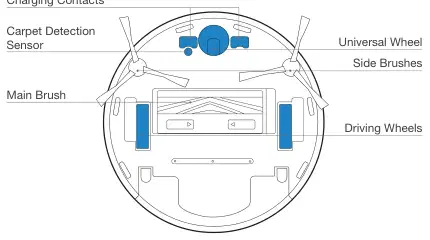
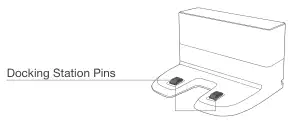
To disable Wi-Fi module on DEEBOT, power the robot ON. Place the robot on the Docking Station making sure the Charging Contacts on DEEBOT and the Docking Station Pins make a connection. Press and hold the AUTO Mode Button on the robot for 20 seconds until DEEBOT emits 3 beeps. To enable Wi-Fi module on DEEBOT, power the robot OFF and then power ON. The Wi- Fi module is turned on when DEEBOT is restarted.
Correct Disposal of this Product This marking indicates that this product should not be disposed of with other household waste throughout the EU. To prevent possible harm to the environment or human health from uncontrolled waste disposal, recycle it responsibly to promote the sustainable reuse of material resources. To recycle your used device, please use the return and collection systems or contact the retailer where the product was purchased. They can safely recycle this product.

Package Contents
Docking Station Side Brushes




Tidy up the area to be cleaned by putting furniture, such as chairs, in their proper place.
During the first use, make sure each room door is open to help DEEBOT fully explore your house.
It may be necessary to place a physical barrier at the edge of a drop to stop the unit from falling over the edge.
Put away objects including cables, cloths and slippers, etc. on the floor to improve the cleaning efficiency.
Before using the product on a rug with tasseled edges, please fold the rug edges under.
Please do not stand in narrow spaces, such as hallways, and make sure not to block the LDS Laser Distance Sensor.
Power Cord · Water Inlet Cover

Charging DEEBOT

1 Docking Station Placement
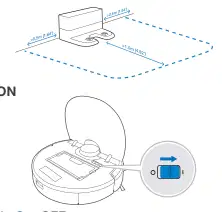

DEEBOT cannot be charged when being powered OFF.
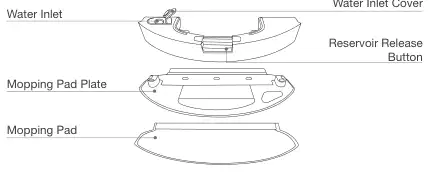
Empty remaining water from the Reservoir and remove the Reservoir and the mopping pad plate before charging DEEBOT.
flashes when DEEBOT is charging. goes out when DEEBOT is fully charged.
* You can also purchase an Auto-Empty Station that automatically empties your DEEBOT's dustbin. Explore more accessories at https://www.ecovacs.com/global
2 Power ON · 3 Charge DEEBOT

Operating DEEBOT
To enjoy all available features, it is recommended to control your DEEBOT via the ECOVACS HOME app.
During the first cleaning, please supervise DEEBOT and assist it should there be a problem.
Before you start, make sure that:



Pressing for 3 seconds to send DEEBOT back to the Docking Station.
Wi-Fi Indicator Light


To keep DEEBOT running at peak performance, perform maintenance tasks and replace parts with the following frequencies:
A multi-function Cleaning Tool is provided for easy maintenance. Handle with care, this cleaning tool has sharp edges.

Before performing cleaning and maintenance tasks on DEEBOT, turn the robot OFF and unplug the Docking Station.
1 2 Washable Mopping Pad Disposable Mopping Pad


Clean the water inlet filter on the bottom of the Reservoir if it is clogged.


Other Components Note: Before cleaning the robot’s Charging Contacts and Docking Station Pins, turn the robot OFF and unplug the Docking Station.

Main Brush


DEEBOT will tell you something is wrong with an indicator light and voice report. More detailed support is available through the ECOVACS HOME and online website.

If DEEBOT will not be used for a while, fully charge DEEBOT and power OFF before storage. Charge DEEBOT every 1.5 month to prevent battery drain.

AUTO Mode Button glows a solid RED. The robot has low battery.
AUTO Mode Button flashes RED. The robot has a problem.

No. Malfunction Possible Causes Solutions
DEEBOT is not switched ON. Switch ON DEEBOT.
DEEBOT has not connected to the Docking Station.
Be sure that the robot’s Charging Contacts have connected to the Docking Station Pins.
The Power Cord is not connected to the Docking Station.
Make sure the Power Cord is firmly connected to the Docking Station.
1 DEEBOT is not charging.
The Docking Station is not connected to the power supply.
Make sure the Docking Station is connected to the power supply.
The battery is completely discharged. Please contact Customer Care for help.
The Docking Station is not correctly connected. Make sure the Docking Station is correctly connected.
The Docking Station is manually moved during the cleaning.
It is suggested not to move the Docking Station during the cleaning.
2 DEEBOT cannot return to the Docking Station.
DEEBOT is paused for more than 90 minutes. It is suggested not to pause DEEBOT for more than 90 minutes.
DEEBOT did not start cleaning from the Docking Station.
Make sure DEEBOT starts cleaning from the Docking Station.
DEEBOT is tangled with something on the floor (electrical wires, curtains, carpet fringing, etc.).
DEEBOT will try various ways to free itself. If it is unsuccessful, manually remove the obstacles and restart.
3 DEEBOT gets stuck while working and stops.
DEEBOT might be stuck under furniture with an entrance of similar height.
Please set a physical barrier, or set a Virtual Boundary in the ECOVACS HOME App.

No. Malfunction Possible Causes Solutions
Working time varies according to floor surface, room complexity and the Cleaning Mode selected. When the battery gets low, DEEBOT automatically switches to Recharge Mode and returns to the Docking Station to recharge itself.
Turn on Continuous Cleaning function in ECOVACS HOME App. DEEBOT will automatically resume the uncompleted cleaning cycle when Continuous Cleaning is enabled.
4 DEEBOT returns to the Docking Station before it has finished cleaning.
DEEBOT is unable to reach certain areas blocked by furniture or barriers.
Tidy up the area to be cleaned by putting furniture and small objects in their proper place.
The Docking Station is too distant from the center of the house.
Please place the Docking Station against the wall of a central room of the house.
Time Scheduling function is cancelled. Program DEEBOT to clean at specific times using the ECOVACS HOME App.
5 DEEBOT does not clean automatically at the scheduled time.
DEEBOT is switched OFF. Switch ON DEEBOT.
Keep DEEBOT switched ON and connected to the Docking Station to make sure it has a full battery to work at any time.
The robot’s battery is low.
The water inlet filter on the bottom of Reservoir is clogged.
Unscrew the water inlet on the bottom of Reservoir and clean the filter.
6 The water is not coming out of the Reservoir when DEEBOT is mopping.
The Reservoir runs out of water. Add water into the Reservoir.
The water outlets on the bottom of DEEBOT are clogged. Check the water outlets on the bottom and clean.

No. Malfunction Possible Causes Solutions
Remove power cords and small objects from the floor to ensure cleaning efficiency. DEEBOT will automatically clean the area missed, please avoid moving DEEBOT manually or block the path during the cleaning cycle.
The cleaning cycle is interfered by small objects or barriers on the floor.
7 DEEBOT misses cleaning spots to be cleaned, or repeats cleaning the area cleaned.
DEEBOT is working on slippery polished floors.
Make sure the floor wax is dried before DEEBOT starts cleaning.
DEEBOT is unable to reach certain areas blocked by furniture or barriers.
Tidy up the area to be cleaned by putting furniture and small objects in their proper place.
The TrueMapping Distance Sensor is blocked.
Remove the objects that are blocking the TrueMapping Distance Sensor.
8 DEEBOT is making too much noise when cleaning. DEEBOT is tangled or blocked with debris. Clean DEEBOT and restart. If the trouble persists, please contact Customer Care.
Incorrect home Wi-Fi username or password entered. Enter the correct home Wi-Fi username and password.
Incorrect App installed. Please download and install ECOVACS HOME App.
DEEBOT is not within range of your home Wi-Fi signal.
Make sure DEEBOT is within range of your home Wi-Fi signal.
9 DEEBOT is not able to connect to the home Wi-Fi network.
Turn ON Power Switch. Press the RESET Button. DEEBOT is ready for network setup when its Wi-Fi Indicator light flashes slowly.
Network setup started before DEEBOT was ready.
DEEBOT does not support 5 GHz Wi-Fi. Make sure the robot has been connected with 2.4 GHz Wi-Fi network.

No. Malfunction Possible Causes Solutions
10 DEEBOT does not clean the whole area. The cleaning area is not tidy. Remove small objects from the floor and tidy up the cleaning area before DEEBOT starts cleaning.
11 DEEBOT reservoir drops out of place during use. The reservoir is not correctly installed. Make sure DEEBOT reservoir clicks into place when installing.
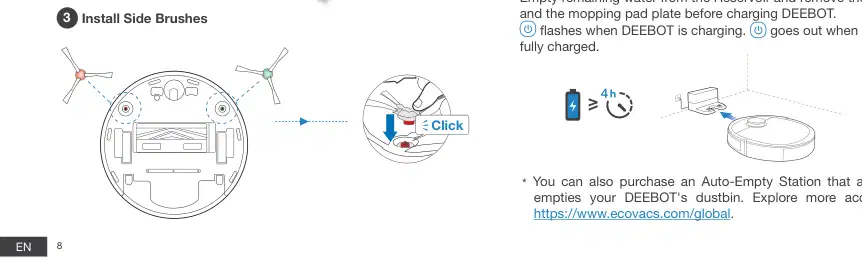
12 DEEBOT Side Brushes drop out of place during use. The Side Brushes are not correctly installed. Make sure the Side Brushes click into place when installing.
Before Wi-Fi setup, make sure DEEBOT, mobile phone, and Wi-Fi network meet the following requirements.


* CH1918 is an Auto-Empty Station that automatically empties your DEEBOT's dustbin. Explore more accessories at https://www.ecovacs.com/global
In dieser Anleitung genannte Seiten – Hersteller, Support und Downloads.
Häufige Probleme, wahrscheinliche Ursachen und Lösungen.
| Problem | Mögliche Ursache | Abhilfe | |
|---|---|---|---|
| DEEBOT is not charging. | DEEBOT is not switched ON. | Switch ON DEEBOT. | p.16 |
| DEEBOT is not charging. | DEEBOT has not connected to the Docking Station. | Be sure that the robot’s Charging Contacts have connected to the Docking Station Pins. | p.16 |
| DEEBOT is not charging. | The Power Cord is not connected to the Docking Station. | Make sure the Power Cord is firmly connected to the Docking Station. | p.16 |
| DEEBOT is not charging. | The Docking Station is not connected to the power supply. | Make sure the Docking Station is connected to the power supply. | p.16 |
| DEEBOT is not charging. | The battery is completely discharged. | Please contact Customer Care for help. | p.16 |
| DEEBOT cannot return to the Docking Station. | The Docking Station is not correctly connected. | Make sure the Docking Station is correctly connected. | p.16 |
| DEEBOT cannot return to the Docking Station. | The Docking Station is manually moved during the cleaning. | It is suggested not to move the Docking Station during the cleaning. | p.16 |
| DEEBOT cannot return to the Docking Station. | DEEBOT is paused for more than 90 minutes. | It is suggested not to pause DEEBOT for more than 90 minutes. | p.16 |
| DEEBOT cannot return to the Docking Station. | DEEBOT did not start cleaning from the Docking Station. | Make sure DEEBOT starts cleaning from the Docking Station. | p.16 |
| DEEBOT gets stuck while working and stops. | DEEBOT is tangled with something on the floor (electrical wires, curtains, carpet fringing, etc.). | DEEBOT will try various ways to free itself. If it is unsuccessful, manually remove the obstacles and restart. | p.16 |
| DEEBOT gets stuck while working and stops. | DEEBOT might be stuck under furniture with an entrance of similar height. | Please set a physical barrier, or set a Virtual Boundary in the ECOVACS HOME App. | p.16 |
| DEEBOT returns to the Docking Station before it has finished cleaning. | Working time varies according to floor surface, room complexity and the Cleaning Mode selected. When the battery gets low, DEEBOT automatically switches to Recharge Mode and returns to the Docking Station to recharge itself. | Turn on Continuous Cleaning function in ECOVACS HOME App. DEEBOT will automatically resume the uncompleted cleaning cycle when Continuous Cleaning is enabled. | p.17 |
| DEEBOT returns to the Docking Station before it has finished cleaning. | DEEBOT is unable to reach certain areas blocked by furniture or barriers. | Tidy up the area to be cleaned by putting furniture and small objects in their proper place. | p.17 |
| DEEBOT returns to the Docking Station before it has finished cleaning. | The Docking Station is too distant from the center of the house. | Please place the Docking Station against the wall of a central room of the house. | p.17 |
| DEEBOT does not clean automatically at the scheduled time. | Time Scheduling function is cancelled. | Program DEEBOT to clean at specific times using the ECOVACS HOME App. | p.17 |
| DEEBOT does not clean automatically at the scheduled time. | DEEBOT is switched OFF. | Switch ON DEEBOT. | p.17 |
| DEEBOT does not clean automatically at the scheduled time. | The robot’s battery is low. | Keep DEEBOT switched ON and connected to the Docking Station to make sure it has a full battery to work at any time. | p.17 |
| The water is not coming out of the Reservoir when DEEBOT is mopping. | The water inlet filter on the bottom of Reservoir is clogged. | Unscrew the water inlet on the bottom of Reservoir and clean the filter. | p.17 |
| The water is not coming out of the Reservoir when DEEBOT is mopping. | The Reservoir runs out of water. | Add water into the Reservoir. | p.17 |
| The water is not coming out of the Reservoir when DEEBOT is mopping. | The water outlets on the bottom of DEEBOT are clogged. | Check the water outlets on the bottom and clean. | p.17 |
| DEEBOT misses cleaning spots to be cleaned, or repeats cleaning the area cleaned. | The cleaning cycle is interfered by small objects or barriers on the floor. | Remove power cords and small objects from the floor to ensure cleaning efficiency. DEEBOT will automatically clean the area missed, please avoid moving DEEBOT manually or block the path during the cleaning cycle. | p.18 |
| DEEBOT misses cleaning spots to be cleaned, or repeats cleaning the area cleaned. | DEEBOT is working on slippery polished floors. | Make sure the floor wax is dried before DEEBOT starts cleaning. | p.18 |
| DEEBOT misses cleaning spots to be cleaned, or repeats cleaning the area cleaned. | DEEBOT is unable to reach certain areas blocked by furniture or barriers. | Tidy up the area to be cleaned by putting furniture and small objects in their proper place. | p.18 |
| DEEBOT misses cleaning spots to be cleaned, or repeats cleaning the area cleaned. | The TrueMapping Distance Sensor is blocked. | Remove the objects that are blocking the TrueMapping Distance Sensor. | p.18 |
| DEEBOT is making too much noise when cleaning. | DEEBOT is tangled or blocked with debris. | Clean DEEBOT and restart. If the trouble persists, please contact Customer Care. | p.18 |
| DEEBOT is not able to connect to the home Wi-Fi network. | Incorrect home Wi-Fi username or password entered. | Enter the correct home Wi-Fi username and password. | p.18 |
| DEEBOT is not able to connect to the home Wi-Fi network. | Incorrect App installed. | Please download and install ECOVACS HOME App. | p.18 |
| DEEBOT is not able to connect to the home Wi-Fi network. | DEEBOT is not within range of your home Wi-Fi signal. | Make sure DEEBOT is within range of your home Wi-Fi signal. | p.18 |
| DEEBOT is not able to connect to the home Wi-Fi network. | Network setup started before DEEBOT was ready. | Turn ON Power Switch. Press the RESET Button. DEEBOT is ready for network setup when its Wi-Fi Indicator light flashes slowly. | p.18 |
| DEEBOT is not able to connect to the home Wi-Fi network. | DEEBOT does not support 5 GHz Wi-Fi. | Make sure the robot has been connected with 2.4 GHz Wi-Fi network. | p.18 |
| DEEBOT does not clean the whole area. | The cleaning area is not tidy. | Remove small objects from the floor and tidy up the cleaning area before DEEBOT starts cleaning. | p.19 |
| DEEBOT reservoir drops out of place during use. | The reservoir is not correctly installed. | Make sure DEEBOT reservoir clicks into place when installing. | p.19 |
| DEEBOT Side Brushes drop out of place during use. | The Side Brushes are not correctly installed. | Make sure the Side Brushes click into place when installing. | p.19 |
Besitzer und unser Team antworten in der Regel innerhalb eines Tages – und Ihre Frage hilft auch anderen weiter.
Stellen Sie die erste Frage — andere Nutzer oder unser Team antworten Ihnen.