


Welcome to Bowers & Wilkins and Formation Flex.
Thank you for choosing Formation. When John Bowers first established Bowers & Wilkins he did so in the belief that imaginative design, innovative engineering and advanced technology were keys that could unlock the enjoyment of audio in the home. That belief continues to inspire every product we design and in Formation has found its most advanced expression yet.
Formation Flex is a network connected, wireless active speaker that provides extremely high performance reproduction of Formation audio streams. Formation Flex is primarily intended to be configured and controlled using the Bowers & Wilkins Home app. The app is available for both iOS and Android devices. Some commonly used control functions are also available via touch buttons on the Formation Flex top panel. It is only possible to install and configure a Formation Flex using the Bowers & Wilkins Home app.
The Bowers & Wilkins Home app is required to connect your Formation Flex to your home network and also to establish a connection with other Formation products in your home. The Bowers & Wilkins Home app also provides some control and configuration functions during use. Before you begin your Formation Flex installation please download and install the Bowers & Wilkins Home app on your iOS or Android device. The Bowers & Wilkins Home app requires iOS V11.4 or later, or Android V8.1 or later. Bluetooth, and WiFi services must be enabled on your iOS or Android device. You will also need to know your WiFi network password.

Formation Flex Mains power cable set appropriate for your territory Document pack
Formation Flex can be used in a range of situations — as a single mono speaker, as a compact stereo pair, or as rear surround speakers in a 5.1 home theatre setup.
When used as a stereo pair, your Formation Flex should be at least 1m (3ft) apart and a similar distance from the listening area. If the speakers are positioned too close together, the stereo reproduction may lack scale; if they are too far apart, the stereo focus may be weak. There is no need to angle your Formation Flex inwards towards the listening area however doing so may tighten the stereo focus. Diagram 1 illustrates basic speaker positioning.
When used as rear speakers in a 5.1 home theatre configuration, your Formation Flex should be placed as close to 120 degrees from the front centre speaker as possible, as shown in Diagram 2.
Your Formation Flex requires a mains power supply to operate so must be located within reach of a mains socket. If your Formation Flex is to use a wired connection to your home network it will need to be located within reach of an appropriate network (Ethernet) cable.
If you decide to place your Formation Flex on a shelf, ensure that the shelf is easily able to support the weight.
Diagram 1 Stereo positioning
Like the vast majority of speakers, your Formation Flex radiates sound energy not only forward but also to the side and rear. Consequently, if your Formation Flex is positioned close to room boundaries, or particularly in a corner, bass may become over emphasised. If you find that bass from your Formation Flex is too prominent, moving it to an alternative position may be beneficial, however you can also adjust the bass level via the Bowers & Wilkins Home app Settings menu.
Diagram 2 Home theatre positioning

Connections In addition to a mains power socket your Formation Flex carries an Ethernet socket for connection to a router should a wired network connection be preferred to wireless (WiFi).
Bluetooth Setup You can connect your Formation Flex to a Bluetooth enabled audio source device, such as a smartphone, to play audio over Bluetooth. Your Formation Flex must first be “paired” with the Bluetooth audio source device.
Switch On and Off With all connections made, and the Bowers & Wilkins Home app installed on your mobile device, your Formation Flex is ready to be setup. Your Formation Flex has no mains power switch and, following a short start-up routine, will be operational as soon as it is connected to mains power. It will play an audio prompt when its startup routine is complete.
Once you have completed the Formation Flex network setup, open the Bowers & Wilkins Home app Settings page, and select the Formation Space that you wish to pair a Bluetooth device with. Next select ‘+ Pair a new device’ from the Bluetooth menu and follow the app instructions to complete pairing. Your Formation Flex will play an audio prompt when pairing is complete and its Space will become available to the paired Bluetooth device for audio playback.
When a Formation Flex that has not been previously used is first switched on it will automatically enter setup mode to enable its connection to your home network and to any other available Formation devices. Setup mode is indicated by a slow amber pulse illumination of the Form touch button . The Formation Flex will also appear in the Bowers & Wilkins Home app as available for set up, either on the initial app page, or after selecting ‘Add Formation product’ from the app Settings page.
Your Formation Flex manages its operational state and power consumption entirely automatically and will switch to a power saving mode after twenty minutes of inactivity. There is no need ever to switch off your Formation Flex, however should you wish to do so, simply disconnected it from mains power. Your Formation Flex will retain its settings without mains power.
You can restart a Formation Flex by a short press and release of the reset button located on its rear panel. Pressing the button will switch the Formation Flex off and on again. All settings will be retained when your Formation Flex restarts. You can also restart your Formation Flex via the Bowers & Wilkins Home app Settings page.
If you wish to reset your Formation Flex to its default settings, press and hold the reset button for five seconds. On restart, your Formation Flex will enter setup mode. All settings will be deleted when your Formation Flex resets. You can also reset your Formation Flex via the Bowers & Wilkins Home app Settings menu.
Network Setup • With your Formation Flex in setup mode, with its Form button illumination pulsing slowly amber, launch the Bowers & Wilkins Home app on your iOS or Android device. The app will guide you with prompts though the setup process.
Diagram 3 Formation Flex connection panel

The Basics You can use your Formation Flex to play audio from streaming services such as Spotify, Apple Music, and Tidal, from the Roon music library service and from internet radio via an appropriate iRadio app. If you have further Formation devices connected to your network, a Formation Audio for example, conventional audio sources connected to it will also be available through your Formation Flex.

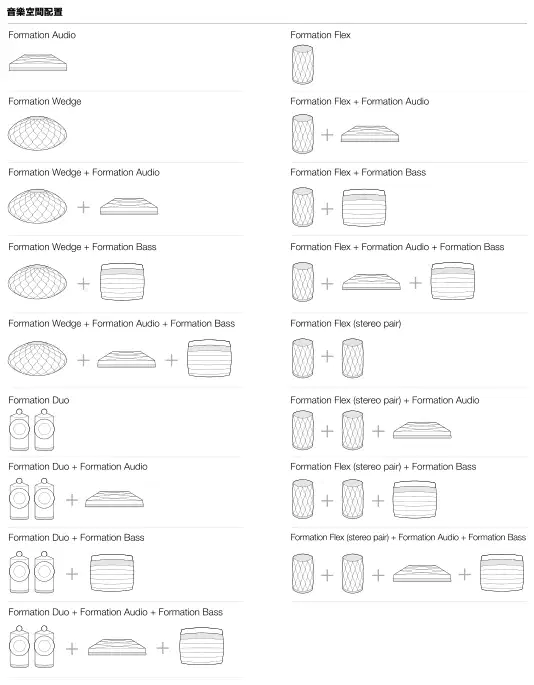
Spaces Spaces are a core concept of the Formation product family. A Formation “space” is a room or a specific area in your home in which you listen to music. Each space can include different combinations of Formation products. The possible configurations are displayed in the Diagram 4.
Playing Audio The Bowers & Wilkins Home app enables you to select and play any available audio source or stream. However, in much the same way that conventional audio source playback requires initiation through a play command, Formation streams must be first initiated through their own gateway app: the Spotify app for example, or a music library app such as Roon. Each gateway or library app will list your Formation Flex space as an available playback device using Airplay, Bluetooth or in the case of Spotify, Spotify Connect.

Once audio streams are playing on the Formation network they can be selected via the Bowers & Wilkins Home app or via the Formation Flex top panel Form touch button . Touching the Form button will cycle though the available streams and sources.
Formation Flex Top Panel Controls Your Formation Flex has touch buttons on its top panel that provide play/pause control, volume adjustment and source/stream selection.
Form Button illumination The Formation Flex Form button illumination changes to indicate a variety of operational states. The illuminations are displayed in Diagram 5.
Diagram 4 Space configurations

Using Bluetooth Bluetooth enables audio apps on mobile, laptop or desktop devices to stream material over a wireless connection to compatible hardware such as the Formation Flex.
With your Formation Flex configured and connected to your network, the Bowers & Wilkins Home app will open to its Home screen where the Formation Flex space and any other available Formation spaces will be listed.
Using Spotify Use your phone, tablet or computer as a remote control for Spotify. Go to spotify.com/connect to learn how.
To use Bluetooth, ensure that the required Formation Space is selected in your device Bluetooth settings menu, open the audio app you wish to use and select the music you wish to play. Tap on the playback devices icon to display a list of those available followed by Formation Space you wish to use.
The Spotify Software is subject to third party licenses found here: https://www.spotify.com/connect/third- party-licenses.
Tap on a Formation Space to select from any available streams or inputs. If there are no streams available, open a streaming app, Spotify for example, and select an item to play, then select the Formation Space from the list of available playback devices. Now, when you return to the Bowers & Wilkins Home app, the Spotify stream will be listed on the Formation Flex Space page.
Using Airplay Airplay enables audio apps on Apple mobile, laptop or desktop devices to stream material over a network to Airplay compatible speakers such as Formation Flex. Airplay enabled apps will display the Airplay icon.
Should your Formation Flex need cleaning you can wipe its top surface with a clean, lint-free cloth and brush its grille with a soft brush. If you wish to use any cleaning fluid, apply it onto the cleaning cloth and not directly onto the Formation Flex. Test a small area first, as some cleaning products may damage some of the surfaces. Avoid products that are abrasive, or contain acid, alkali or anti- bacterial agents.
The Bowers & Wilkins Home app Home page has a Settings icon in the top right corner. Tap the icon to open the app Settings menu. The Settings menu provides options to configure and reset your Formation devices and re-name your Formation Spaces. App and Formation device firmware updates are also initiated from the Settings menu.
To use Airplay, open the audio app you wish to use and select the music you wish to play. Tap on the Airplay icon to display a list of available devices followed by the Formation Space you wish to use.
Finding Your Way Around the Bowers & Wilkins Home App The Bowers & Wilkins Home app will search for available Formation Spaces when opened then display its Home page with the Spaces listed.
Should you require further help or advice regarding your Formation Flex please visit the Formation support site here www.bowerswilkins.com/support
Beneath each Space the app will display its current activity. Tapping on an active Space will open a “now playing” screen that enables volume and play/pause control.
Using Roon Roon is a feature rich music library and playback app that compiles all the music files available to your network and makes them easily available to play across all your Formation Spaces and any other Roon enabled audio devices. Roon is available for mobile, laptop or desktop devices.
Environmental Information This product complies with international directives, including but not limited to the Restriction of Hazardous Substances (RoHS) in electrical and electronic equipment, the Registration, Evaluation, Authorisation and restriction of Chemicals (REACH) and the disposal of Waste Electrical and Electronic Equipment (WEEE). Consult your local waste disposal authority for guidance on how properly to recycle or dispose of this product.
The ‘now playing’ screen also provides an ‘Available Spaces’ option that enables the stream playing in the selected Space to be transferred to another Space or played in multiple Spaces. The ‘Available Spaces’ screen also provides the opportunity to control volume, both globally across all Spaces, or in individual Spaces.
When you open Roon it will display your complete audio library together with its metadata and artwork along with all the Formation Spaces and any other available network audio devices. Simply select the music you wish to play and Formation space in which you want to hear it.
The Bowers & Wilkins Home app Settings page is opened by tapping on the settings icon. The initial Settings menu lists each space and the number of Formation devices present in each one.
Tapping on a Space listed in the Settings menu provides access to its Space and Formation device settings. Tap the Space name to access the Space settings and tap the device name to access the device settings. The device settings available will depend on the device in question.
Note: If the Settings icon on the Bowers & Wilkins Home app displays a yellow dot this indicates that a Formation firmware update is available. The firmware update process is initiated from the Settings menu. You should always aim to keep the Bowers & Wilkins Home app and your Formation devices up to date with the latest version and firmware. Not only will this help ensure the most reliable performance, it will ensure that you benefit from new Formation features.
Flashing white Start-up in progress
Pulsing amber Ready for setup
Flashing amber Firmware update in progress
Pulsing white Audio pull in progress
Pulsing red Error - contact support
Solid red Error - contact support
Flashing red Factory reset in progress
Diagram 5 Form button illuminations
Indicator Operational state

網絡設置 • 在Formation Flex設置模式中,Form 按鈕的 指示燈脈衝會慢慢變成橙色,然後在iOS或安卓設 備上啓動Bowers & Wilkins Home應用程序。該 應用程序將指導您完成安裝過程。
AC連接埠 RJ-45連接埠(100Mbps) 復位按鈕 USB-C(僅用於服務和診斷用途)
除了電源插座 ,Formation Flex帶有一個用於連 接路由器的以太網插座 。對比於無線 (WiFi)連 接,較建議有線網絡連接。
注:在安裝過程中,Formation Flex使用藍牙 連接運行Bowers & Wilkins Home應用程序的 設備。藍牙信號的傳輸距離相對較短,可能會 因房間邊界而受阻,所以我們建議,在安裝過 程中,Formation Flex和Bowers & Wilkins Home應用程序設備保持較近距離。
藍牙設置 Formation Flex可連接藍牙支持的音頻源設備,例如 智能手機,通過藍牙播放音頻。Formation Flex必須 首先與藍牙音頻源設備成功「配對」。
當完成Formation Flex網絡設置後,請打開Bowers & Wilkins Home應用程序的設置頁面,選擇您希 望與藍牙設備配對的Formation空間。接下來從藍 牙菜單中選擇「+配對一個新設備」(+Pair a new device),並按照應用程序的說明完成配對。配對完 成後,Formation Flex將播放一個音頻提示,隨後配 對的藍牙設備可以使用其空間,播放音頻。
開關 當一切連接到位,並且Bowers & Wilkins Home應 用程序已成功安裝在移動設備上後,您就可以設置和 使用Formation Flex了。Formation Flex沒有主電 源開關,連接主電源,短啓動後將立即運行。啓動程 序完成後,它將播放一個音頻提示。
首次打開之前未使用的Formation Flex時,它們 將自動進入設置模式,以使其能夠連接到您的家庭 網絡和任何其他可用的Formation設備。揚聲器的 Form按鈕 的琥珀色脈衝緩慢點亮表示設置模 式。Formation Flex也將出現在Bowers&Wilkins Home應用程序中以供設置,可以在初始應用程序 頁面上,也可以從應用程序設置頁面中選擇‘Add Formation product’ 「添加Formation產品」。
您的Formation Flex完全自動管理其運行狀態和耗電 量,並且在閒置二十分鐘後將切換到省電模式。無需 關閉Formation Flex,但是,如果您要這樣做,只需 斷開它們與電源的連接即可。您的Formation Flex將 保持其設置而無需電源。
短按後放開後面板上的復位按鈕 ,將重新啓動 Formation Flex。按下按鈕將關閉和再次打開 Formation Flex。Formation Flex重啓時,將保留 所有設置。可以通過Bowers & Wilkins Home應用 程序設置頁面重新啓動Formation Flex。
如想恢復Formation Flex的默認設置,請按下並保 持復位按鈕5秒。重新啓動時,Formation Flex將進 入設置模式。Formation Flex復位時,所有設置將刪 除。您還可以通過Bowers & Wilkins Home應用程 序設置菜單復位Formation Flex。

基本 您可以使用Formation Flex從串流服務(如 Spotify,Apple Music和Tidal等),從Roon音樂庫 服務以及通過適當的iRadio應用程序從互聯網廣播 播放音頻。如果您有更多的Formation設備連接到網 絡,例如Formation Audio,連接到它的常規音頻源 也可以通過Formation Flex而獲得。
空間 (Spaces) 空間是Formation產品家族的核心概念。Formation 「空間」是指在家中欣賞音樂的一個房間或某個特定 區域。每個空間都可以包含Formation的不同產品組 合。圖4顯示了可用的配置。

播放音頻 Bowers & Wilkins Home應用程序可讓您選擇和 播放可用的音頻源或流媒體。然而,與傳統音頻源 播放需要通過一個播放命令啓動一樣,Formation 音頻流必須首先通過自己的網關應用程序啓動: 例如,Spotify應用程序,或音樂庫應用程序,如 Roon。每個網關或音樂庫應用程序都將Formation Flex空間列為一個可用播放設備,使用Airplay、藍 牙,或在Spotify的情況下,使用Spotify Connect。
當音頻流在Formation網絡上播放時,可以通 過Bowers & Wilkins Home應用程序或通過 Formation Flex前面板觸摸按鈕 選擇。觸摸 Form按鈕將循環播放可用的流和源。
Formation Flex頂面板控件和說明 您的Formation Flex的頂部面板上有觸摸按鈕,可提 供播放/暫停控制,音量調節和音源/串流選擇。
In dieser Anleitung genannte Seiten – Hersteller, Support und Downloads.
Besitzer und unser Team antworten in der Regel innerhalb eines Tages – und Ihre Frage hilft auch anderen weiter.
Stellen Sie die erste Frage — andere Nutzer oder unser Team antworten Ihnen.