



Setting the remote control
The different Loewe sets can be set as follows on the Assist remote control:
Loewe TV (Q2500 – L2650) + ¾
Loewe TV (Q2300 – Q2400) +
Loewe Centros 11x2 +
Loewe Centros 12x2/21x2 + ¾
Loewe ViewVision DR+ +
Loewe ViewVision 8106 H +
Loewe Auro 2216 PS/8116 DT + ¾
Loewe Xemix 6222 PS +
The specified key combination must be pressed (approx. 5 s) until one of the
LEDs (2) flashes twice. Every time you press the button, the indicator of the
selected operating mode (TV – REC – DVD – RADIO) lights up.
The operating and safety instructions of this manual are restricted to the scope
of functions of the Assist remote control. That means: it is only described here
how to call a certain function with the Assist but not what this function does
exactly in the respective set and what consequences this could have.
➠ Read the operating and safety instructions of the respective set in any case.
For your own safety and to prevent damage, protect the remote control
against:
dripping or splashing water and moisture cold, heat and heavy temperature variations knocks and mechanical stresses excessive heating due to direct sunlight, naked lights and candles intervention inside the set
This remote control has been designed exclusively for use in a domestic envi-
ronment. Warranty services only cover this use for the intended purpose.
Only clean your remote control with a slightly damp, soft cloth. Never use
aggressive or abrasive cleaning agents.
Device Button combination · ¾ Factory setting

1 Sound off/on 2 LED indicator for current operating mode 3 Switch over to operate TV set 4 Switch over to operate Recorder 5 Call timer list 6 Set picture format 7 Electronic Programme Guide (EPG) 8 Teletext 9 Show/hide menu 10 V–/V+ Volume down/up 11 Station list; MENU: confirm/call 12 Green button: Standard settings for picture/sound 13 Red button: Freeze picture on/off; DR+: Call the DR+ archive 14 Select station down; DR+: Jump back/Rewind/Replay 15 DR+: Record 16 Freeze picture on/off; DR+: Pause (Start viewing with time shift)
17 Switch on/off - on stand by 18 Radio Digital 19 Switch over to operate DVD-Player 20 Sound menu 21 Select station directly MENU: enter numbers or letters 22 Call AV selection 23 PIP (picture in picture) 24 Menu “Other functions“ 25 Open index; MENU: info texts 26 Status display; MENU: hide menu 27 P+/P– Select station up/down 28 PIP: Position of the PIP picture; MENU: select/set 29 Yellow button: previous station 30 Blue button: programme info 31 Freeze picture off; DR+: Playback/Set bookmark 32 Select station up; DR+: Jump forward/Fast forward 33 Freeze picture on; DR+: Stop
“Interluebke” functions 1 ( ) & 28 () Lift 1 up 1 ( ) & 28 () Lift 1 down 1 ( ) & 28 () Lift 2 left 1 ( ) & 28 () Lift 2 right

1 Sound off/on 2 LED indicator for current operating mode 3 Switch over to operate TV set 4 Switch over to operate Recorder 5 Call timer list 6 Set picture format 7 Electronic Programme Guide (EPG) 8 Teletext 9 Show/hide menu 10 V–/V+ Volume down/up 11 Station list on; MENU: confirm/call 12 Green button: Menu “Other functions“ 13 Red button: Freeze picture on/off; DR+: Call the DR+ archive 14 Select station down; DR+: Jump back/Rewind/Replay 15 DR+: Record 16 Freeze picture on/off; DR+: Pause (Start viewing with time shift)
17 Switch on/off - on stand by 18 Radio Digital 19 Switch over to operate DVD-Player 20 Sound menu 21 Select station directly MENU: enter numbers or letters 22 Call AV selection 23 PIP (picture in picture) 24 Personal/factory values for picture and sound 25 Open index; MENU: info texts 26 Status display; MENU: hide menu 27 P+/P– Select station up/down 28 PIP: Position of the PIP picture; MENU: select/set 29 Yellow button: previous station 30 Blue button: programme info 31 Freeze picture off; DR+: Playback/Set bookmark 32 Select station up; DR+: Jump forward/Fast forward 33 Freeze picture on; DR+: Stop

1 Sound off/on 2 LED indicator for current operating mode 3 Switch over to operate TV set 4 Switch over to operate Recorder 5 Call timer list 6 Picture menu 7 Electronic Programme Guide (EPG) 8 Teletext 9 Show/hide menu 10 V–/V+ Volume down/up 11 Station list; MENU: confirm/call 12 Green button: Standard settings for picture/sound 13 Red button: personal teletext pages DR+: Call the DR+ archive 14 Select station down; DR+: Jump back/Rewind/Replay 15 DR+: Record 16 Freeze picture on/off; DR+: Pause (Start viewing with time shift)
17 Switch on/off - on stand by 18 Radio Digital 19 Switch over to operate DVD-Player 20 Sound menu 21 Select station directly MENU: enter numbers or letters 22 Call AV selection 23 PIP (picture in picture) 24 Video operation with video operating line 25 Open index; MENU: info texts 26 Status display; MENU: hide menu 27 P+/P– Select station up/down 28 PIP: Position of the PIP picture; MENU: select/set 29 Yellow button: previous station 30 Blue button: programme info 31 Freeze picture off; DR+: Playback/Set bookmark 32 Select station up; DR+: Jump forward/Fast forward 33 Freeze picture on; DR+: Stop

1 TV Sound off/on 2 LED indicator for current operating mode 3 Switch over to operate TV set 4 Switch over to operate Recorder 5 Timer recording menu; timer recording list menu 6 STOP: Title List; PLAY: Edit thumbnail; CARD: Photo-, Music-, Film-Mode 7 STOP: Call AV selection (AV1-AV4,DV,TV) 8 User interface of loaded DVD MENU: original / playlist 9 Show/hide menu 10 V–/V+ TV Volume down/up 11 Status display (TV, DVD) MENU: confirm the menu selection 12 Green button: ShowView menu 13 Red button: new chapter marker 14 PLAY: press short: Start of current chapter/previous chapter PAUSE: press short: slow motion back PLAY: press long: search back 15 Record 16 Pause /single frame
17 Switch on/off - on stand by 18 TV Radio Digital 19 Switch over to operate DVD-Player 20 TV Sound menu 21 STOP: Select station directly MENU: enter numbers or letters 22 MENU: enter numbers or letters 23 PIP (picture in picture) 24 Card Reader operation 25 Info; PLAY: menu bar 26 MENU: hide menu 27 P+/P– PLAY: Next chapter / STOP: Select station up/down 28 MENU: select/set 29 Yellow button: Zoom 30 Blue button: DISC: short: Set marker; long: Marker search 31 Playback 32 PLAY: Press short: next chapter PLAY: Press long: search forward PAUSE: Press short: slow motion forward 33 Stop

1 TV Sound off/on 2 LED indicator for current operating mode 3 Switch over to operate TV set 4 Switch over to operate Recorder 5 Timer recording menu; timer recording list menu 6 Timeshift Mode 7 PLAY: skip 15 Sec. 8 User interface of loaded DVD MENU: original / playlist 9 “Setup” menu 10 V–/V+ TV Volume down/up 11 Status display (TV, DVD) MENU: confirm the menu selection 12 Green button: ShowView menu 13 Red button: new chapter marker 14 Press short during playback: Start of current chapter /previous chapter; Press short during pause: slow motion back 15 Record 16 Pause; single frame
17 Switch on/off - on stand by 18 TV Radio Digital 19 Switch over to operate DVD-Player 20 TV Sound menu 21 STOP: Select station directly MENU: enter numbers or letters 22 STOP: Call AV selection MENU: enter numbers or letters 23 PIP (picture in picture) 24 “Home” menu 25 Info; PLAY: menu bar 26 MENU: hide menu 27 P+/P– Next chapter; STOP: Select station up/down 28 MENU: select/set 29 Yellow button: Zoom 30 Blue button: DISC: short: Set marker; long: Marker search 31 Playback 32 PLAY: search forward PAUSE: slow motion forward 33 Stop

1 TV Sound off/on 2 LED indicator for current operating mode 3 Switch over to operate TV set 4 Switch over to operate Recorder 5 Call timer list 6 Set TV picture format 7 STOP: select picture and sound source 8 no function 9 Show/hide menu 10 V–/V+ TV Volume down/up 11 Station list; MENU: confirm/call 12 Green button: ShowView menu 13 Red button: Counter reset 14 Rewind; PLAY: search backwards (x 3) Press again: search backwards (normal) 15 Record (and Play key 31) During recording: add 30 minutes recording time (and Play key) 16 Pause; single frame
17 Switch on/off - on stand by 18 TV Radio Digital 19 Switch over to operate DVD-Player 20 TV Sound menu 21 Select station directly MENU: enter numbers or letters 22 MENU: enter numbers or letters 23 STOP: switch to Long Play/Standard Play 24 PLAY: select sound; STOP: station language selection 25 Display/close Timer list 26 Status display; MENU: hide menu 27 P+/P– PLAY: Index Scan forward/back 28 STOP: Station up/down PLAY: slow motion backward/forward 29 Yellow button: no function 30 Blue button: no function 31 Playback 32 Fast forward; PLAY: search forwards (x 2) Press again: search forwards (normal) 33 Stop

1 Sound off/on 2 LED indicator for current operating mode 3 Switch over to operate TV set 4 Switch over to operate Recorder 5 Sleep timer 6 Set TV picture format; RADIO: Mono/Stereo 7 DISC: Repeat; RADIO: display RDS name/frequency of station 8 DISC: User interface of loaded DVD 9 Show/hide menu; MENU: close window 10 V–/V+ Volume down/up 11 DISC: Title/Chapter overview; RADIO: station table MENU: confirm menu selection 12 Green button: Title/Chapter selection 13 Red button: DISC: camera position 14 DISC: short: beginning of chapter/title previous chapter long: search back RADIO: short: fine tuning back long: search back 15 no function 16 Pause; single frame; slow motion
17 Switch on/off - on stand by 18 short: TV Radio Digital; long: Auro FM/AM-Radio 19 Switch over to operate Auro 20 Select sound format 21 DISC: select chapter/title RADIO: select stored station MENU: enter digits 22 MENU: enter numbers or letters 23 Select external audio source 24 DISC: Repeat A-B; RADIO: FM/AM-mode 25 DISC: menu bar MENU: context help 26 DISC: Status display; RADIO: station table MENU: hide menu 27 P+/P– DISC: next/previous chapter; RADIO: station forward/back 28 DISC: chapter up/down; MENU: select up/down DISC: search back/forward; MENU: select/set 29 Yellow button: Zoom 30 Blue button: Set marker 31 Playback 32 DISC: short: next chapter/title; long: search forward RADIO: short: fine tuning forward; long: search forward 33 Stop

1 TV Sound off/on 2 LED indicator for current operating mode 3 Switch over to operate TV set 4 Switch over to operate Recorder 5 Subtitles 6 Repeat A-B 7 TV AV selection 8 User interface of loaded DVD 9 Show/hide menu 10 V–/V+ TV Volume down/up 11 MENU: confirm/call 12 Green button: Language 13 Red button: Title/Chapter selection 14 Beginning of chapter or previous chapter /search back 15 no function 16 Pause; single frame; slow motion
17 Switch on/off - on stand by 18 TV Radio Digital 19 Switch over to operate DVD-Player 20 TV Sound menu 21 Select chapter MENU: enter numbers or letters 22 MENU: enter numbers or letters 23 Set TV picture format 24 Select camera position 25 Info; PLAY: menu bar 26 MENU: hide menu 27 P+/P– STOP: Select station up/down 28 MENU: select/set PLAY: Chapter up/down PLAY: search backward/forward 29 Yellow button: Zoom 30 Blue button: Set marker 31 Playback 32 Next chapter / search forward 33 Stop

Cardboard box and packaging You have opted for a durable and technically sophisticated product. In line with national regulations regarding the disposal of packaging materials, we pay a fee to authorised recyclers who collect packaging from dealers. How- ever, we recommend that you keep the original cardboard box and the rest of the packaging materials so that the unit can, if necessary, be transported in the safest possible conditions.
Important: The EU Directive 2002/96/EG governs the proper re-acceptance, handling and recycling of used electronic appliances. Old electronic appliances must therefore be disposed of separately. Never throw this set in the normal domestic waste. You can hand in your old set free of charge at identifi ed collection points or at your dealer if you buy a similar new set. Other details about re- acceptance (also for non-EU countries) are available from your local administration.
The batteries provided contain no harmful materials such as cadmium, lead or mercury. Regulations concerning used batteries mean that batteries may no longer be thrown out with the household rubbish. You can dispose of used batteries free of charge at the collection points in commercial outlets. Your dealer will also have a collection point for used batteries.
The Loewe Opta GmbH is a share company of German law with its Head Office in Kronach. Industriestraße 11, 96317 Kronach Telephone: + 49 (0)9261 / 99-0 Fax: + 49 (0)9261 / 99-500 E-mail: [email protected] Trade Register: Municipal Court Coburg, No. HRB 42243 VAT ID-No.: DE 193216550 WEEE registration no.: DE 41359413 Issue 12.08 4th edition © Loewe Opta GmbH, Kronach All rights reserved including translation. Subject to modifications. This document describes the basic functions of the respective device – not the optional extensions. We cannot guarantee that all the functions described in this document are compatible with the software version used in your set. Please consult your dealer if necessary.
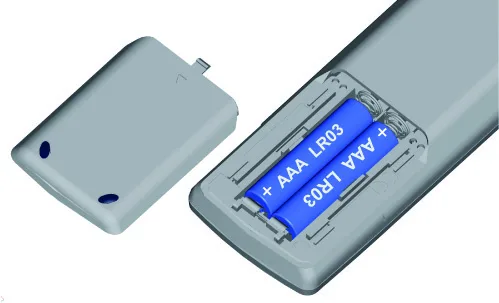
The unit · Remote control batteries

Loewe Opta GmbH, Customer Care Center Industriestraße 11 96317 Kronach, Deutschland Tel +49 1801–22256393 Fax +49 9261–99500 Email [email protected]
Loewe Austria GmbH Parkring 12 1010 Wien, Österreich Tel +43 - 1 22 88 633 - 0 Fax +43 - 1 22 88 633 - 90 Email loewe@loewe.co.at
EISAGOGIKI EMBORIKI ELLA- DOS S.A. 321 Mesogion Av. 152 31 Chalandri-Athens, Hellas Tel +30 - 210 672 12 00 Fax +30 - 210 674 02 04 Email [email protected]
International Dynamics Australasia Pty Ltd. 129 Palmer Street Richmond 3121, Victoria, Australia Tel +61 - 3 - 94 29 08 22 Fax +61 - 3 - 94 29 08 33 Email mail@international dynamics.com.au
Kjaerulff 1 A/S C.F. Tietgens Boulevard 19 5220 Odense SØ, Denmark Tel +45 - 66 13 54 80 Fax +45 - 66 13 54 10 Email [email protected]
Basys Magyarorszagi KFT Tó park u.9. 2045 Törökbálint, Magyar Tel +36 - 2341 56 37 (121) Fax +36 - 23 41 51 82 Email [email protected]
Plug&Play Bednjanska 8, 10000 Zagreb Hrvatska (Kroatia) Tel +385 1 4929 683 Fax +385 1 4929 682 Email [email protected]
Loewe Opta Benelux NV/SA Uilenbaan 84 2160 Antwerpen, België Tel +32 - 3 - 2 70 99 30 Fax +32 - 3 - 2 71 01 08 Email [email protected]
Gaplasa S.A. Conde de Torroja, 25 28022 Madrid, España Tel +34 - 917 48 29 60 Fax +34 - 913 29 16 75 Email loewe@maygap.com
TEDRA TRADING OY Kuusemetsa 3 Saue 76506, Estonia Tel +372 - 50 14 817 Fax +372 - 67 09 611 Email raivo@futurehifi .com
Loewe Italiana SRL Largo del Perlar, 12 37135 Verona (VR), Italia Tel +39 - 045 82 51 611 Fax +39 - 045 82 51 622 Email Stefano.Borgognoni@ loewe.it
Darlington Service Kn. Klementina Street, bl. 193 1618 Sofi a, Bulgaria Tel +359 - 2 955 63 99 Fax +359 - 2 955 63 99 Email sac@audio-bg.com
Loewe Opta France SAS 13 rue du Dépôt, Parc del l‘Europe, BP 10010 67014 Strasbourg Cédex, France Tel +33 - 3- 88 79 72 50 Fax +33 - 3- 88 79 72 59 Email loewe.france@loewe- fr.com
PL Trading (pz 2004) Ltd. 27, Aliat Hanoar St. Givataiim 53401, Israel Tel +972 - 3 - 57 27 155 Fax +972 - 3 - 57 27 150 Email zeev@loewe.co.il
Telion AG Rütistrasse 26 8952 Schlieren, Schweiz Tel +41 - 44 732 15 11 Fax +41 - 44 732 15 02 Email [email protected]
Origo Ltd Unit 23 Magna Drive Magna Business Park, City West Dublin 24, Republic of Ireland Tel +353-1-4666700 Fax +353-1-4666708 Email [email protected]
HADJIKYRIAKOS & SONS LTD. 121 Prodromos Str., P.O Box 21587 1511 Nicosia, Cyprus Tel +357 - 22 87 21 11 Fax +357 - 22 66 33 91 Email savvas@hadjikyriakos.com.cy
Kjaerulff 1 OY Uudenmaantie 100 20760 Piispanristi, Finland Tel +358 - 20 751 3800 Fax +358 - 20 751 3801 Email loewetuki@kjaerulff1.com
Loewe UK Limited Century Court, Riverside Way Riverside Business Park, Irvine, Ayrshire KA11 5DJ, UK Tel +44 - 1294 315 000 Fax +44 - 1294 315 001 Email enquiries@loewe-uk.com
SALEM AGENCIES & SERVICES CO. Hamad Al Haqueel Street, Rawdah, Jeddah Kingdom of Saudi Arabia Tel +966 (2) 665 4616 ext: 666 Fax +966 (2) 660 7864 Email hkurkjian@aol.com
BASYS CS SPOL. S.R.O Sodomkova 8/1478 10200 Praha 10 - Hostivar, Česko Tel +420 2 34 70 67 00 Fax +420 2 34 70 67 01 Email offi [email protected]

A Cappella Ausros Vartu 5, Pasazo skg. 01129 Vilnius, Lithuania Tel +370 - 52 12 22 96 Fax +370 - 52 62 66 81 Email: [email protected]
Avitech Co. SRL 1/II Pipera Tunari St. 007190 Voluntari, Ilfov, Romania Tel +40 - 21 200 64 64 Fax +40 - 21 200 64 65 Email [email protected]
DONEO CO. LTD 34/36 Danny Cremona Street Hamrun, HMR02, Malta Tel +356 - 21 - 22 53 81 Fax +356 - 21 - 23 07 35 Email info@doneo.com.mt
Service Center Loewe ul. Verkhnaya Maslovka, d. 29 125083 Moscow, Россия Tel +7 - 495 612 50 43 Fax +7 - 495 612 47 10 Email [email protected]
SOMARA S.A. 377, Rue Mustapha El Maani 20000 Casablanca, Morocco Tel +212 - 22 22 03 08 Fax +212 - 22 26 00 06 Email [email protected]
Kjaerulff 1 AB Ridbanegatan 4, Box 9076 200 39 Malmø, Sverige Tel +46 - 4 06 79 74 00 Fax +46 - 4 06 79 74 01 Email Sweden@kjaerulff1.com
PCE. PREMIUM CONSUMER ELECTRONICS as Ostre Kullerod 5 3241 Sandefjord, Norge Tel +47 - 33 48 33 48 Fax +47 - 33 44 60 44 Email [email protected]
BaSys Czech & Slovak s.r.o. Stará Vajnorská 17/A 831 04 Bratislava, Slovakia Tel + 421 2 49 10 66 18 Fax + 421 2 49 10 66 33 Email: [email protected]
International Dynamics (NZ) Pty Ltd PO Box 109 317, Newmarket Auckland, New Zealand Tel +64 9 379 0179 Fax +64 9 379 0279 Email: enquiries@international dynamics.co.nz
ENKAY ELEKTRONIK SAN. Ve Tic. Ltd. Sti. Alemdag Cad: Site Yolu No.: 10 81230 Ümraniye/ Istanbul, Türkiye Tel +90 - 216 634 44 44 Fax +90 - 216 634 39 88 Email mhatipog@enkaygroup.com
Dubai Audio Center P.O. Box 32836, Sheik Zayed Road Dubai, UAE Tel +971 - 4 343 14 41 Fax +971 - 4 343 77 48 Email dacdubai@emirates.net.ae
Mayro Magnetics Portugal, Lda. Rua Professor Henrique de Barros Edifício Sagres, 2º. C 2685-338 Prior Velho, Portugal Tel +351 - 21 942 78 30 Fax +351 - 21 942 78 30 Email [email protected]
THE SOUNDLAB (PTY) LTD P.O. Box 31952, Kyalami 1684 Republic of South Africa Tel +27 - 1 14 66 47 00 Fax +27 - 1 14 66 42 85 Email loewe@mad.co.za
DSV TRADING SA Plac Kaszubski 8 81-350 Gdynia, Polska Tel +48 - 58 - 6 61 28 00 Fax +48 - 58 - 6 61 44 70 Email market@dsv.com.pl
© by Loewe Opta 081006

Loewe TV Chassis-/Software Version anzeigen
Rufen Sie im TV-Betrieb (ohne weitere Einblendungen) das Stichwortverzeichnis auf.
Option Ausstattung des TV auswählen.
OK bestätigen. Das Infomenü Ausstattung wird angezeigt.
Display Loewe TV chassis/software version
Call the index in the TV mode (without any other on- screendisplays).
Select the Integrated features option.
Press OK. The Integrated features menu is displayed.
Afficher la version logicielle / du châssis du téléviseur Loewe
Ouvrez l‘index en mode TV (sans affi chage supplémen- taire).
Sélectionnez l’option Caractéristiques techni- ques.
Confirmez avec OK. Le menu d’information Caractéristiques techniques s’affiche.
Visualizzare la versione di chassis / software della TV Loewe
Nella modalità TV (senza ulteriori rappresentazioni video) aprire l‘indice.
Selezionare l’opzione Specifiche tecniche del televisiore.
Confermare con OK. Viene visualizzato il menu Specifiche tecniche.
Mostrar el chasis/la versión de software del televisor Loewe
Acceda en el modo TV (sin otras sobreimpresiones) al índice de materias.
Seleccione Equipamiento del televisor.
Confirme con OK. Aparecerá el menú de información Equipamiento.
Roep in de tv-modus (zonder verdere oproepbare vensters) het trefwoordenregister op.
Selecteer de optie Uitrusting van het tv-toestel.
Bevestig met OK. Het infomenu Uitrusting wordt weerge- geven.
Loewe TV-chassis-/softwareversie weergeven

Vis Loewe TV chassis-/softwareversion
Ved tv-funktion (uden yderligere skærmmenuer) hentes stikordsfortegnelsen frem.
Vælg Tv'ets udstyr.
Bekræft med OK. Informationsmenuen Udstyr vises.
Loewe-TV:n kuori- ja ohjelmistoversion näyttäminen
Avaa Hakemisto TV-toimintatilassa (kun kuvaruudulla ei ole valikoita).
Valitse vaihtoehto TV-varustus.
Vahvista painikkeella OK. Kuvaruutuun ilmestyy Varustus- tietovalikko.
Via Loewe TV chassi-/programvaruversion
Visa indexet i teveläge (utan att något annat visas på skärmen).
Välj alternativet TV:ns techniska specifikatio- ner.
Bekräfta med OK. Infomenyn Utrustning visas.

233–33023.002
In dieser Anleitung genannte Seiten – Hersteller, Support und Downloads.
Besitzer und unser Team antworten in der Regel innerhalb eines Tages – und Ihre Frage hilft auch anderen weiter.
Stellen Sie die erste Frage — andere Nutzer oder unser Team antworten Ihnen.