




Download „IEye-camera“ and install it. You must then register. On the LOGIN screen, click the „New user registration“ button and enter your phone number or e-mail. Then choose a password for the mobile application and click „Registra tion“ to confirm. This is only in case the password for the app is later forgotten. Complete the same information on the welcome screen and press „Login“. New updates for the app will be appear on the Home screen and you should confirm them. They provide you with access to the latest features and fixes. Wait for the update to finish before continuing.
Connecting to the Camera 1) Plug the camera into the socket and wait for it to begin beeping regularly. If no tone is heard after a longer period of time then reset the camera (bottom/side depending on the camera type). 2) Click the „+“ button on the home screen (top right corner) and select „Add new device“. Then choose the connection option that the IP camera is to be set to. For each option, there is an explanatory image guide illustrating the necessary steps to be taken. For Wi-Fi connection, click the „Smartlink“ icon, enter your Wi -Fi network’s password (the Wi-Fi and the password that your mobile is currently connected to) and wait for the camera’s IP tones. When the camera sounds, click on the next step in the image guide, place the mobile (with the sound on) to the camera, and confirm once more („Next“ button). Then wait for a connection. A coded sound will be triggered from your mobile, which then passes the complete IP camera connection information to the Wi-Fi. If the volume on your mobile device is too low, then pairing may not be success ful. In this case, increase the volume. If you have a good Wi-Fi signal and sufficient audio volume on your mobile device, then successful pairing with the Wi-Fi and subsequent connection happens within seconds.

Troubleshooting: If you cannot pair your camera to your mobile phone, try the following steps. First of all, make sure you‘re connected to the Wi-Fi network that the camera is connected to. If so, try restarting the mobile app. If you are still unable to connect, uninstall the application, restart your mobile phone, and re install the camera as directed. The installation needs to take place within 5m from the Wi-Fi. The most com mon difficulties are: a wrong Wi-Fi setup (a poorly configured Wi-Fi router, or interference from neighbouring networks), incompatible mobile devices, or a poor Wi-Fi signal.
Live Transmission and Setup 1) Click on the front of the camera preview to begin. With automatically rotating IP cameras, you can quickly finger through the mobile device‘s display, scroll through the camera application to suit your needs, and store up to 5 memorised locations which you’d like the camera to remember (to aid swifter movement between the selected positions). This setting is located in the second section of the Live View Icons. Place the camera in the initial location you would like to see and save the position by holding down the first icon. The camera stores this position to its memory. Repeat the procedure for any other positions. Then you can quickly and conveniently switch views based on the stored memory positions. The heads of automatica lly rotating cameras should never be rotated manually! Any warranty becomes invalid if mechanical damage has been caused by physical rotation. 2) In live view mode, you can click on each icon to record a video (after inserting the MicroSD card into the IP camera), take pictures, talk through the camera by holding the microphone icon, start a motion detection

alarm (shield icon), turn the sound on and off, save up to 5 positions for rotary cameras, enlarge the screen to full size (in this mode, the best picture quality appears in LD, SD, and HD). 3) Further detailed settings are located under the gear icon. You will find everything here that you need (time and date, image and sound, security settings, network settings, alarm, recording, additional sensors and firmware updates). Whilst the setup is very straightforward and intuitive, you are very welcome to contact us in writing or by phone to BML Customer Support and we will be happy to advise you should you expe rience any difficulties.
The password is too simple. The new password should contain 6-30 characters.
Activate / deactivate the motion detection alarm.
Contains a list of all the recordings saved on the SD card.
Main detailed settings for the camera and device.

How to pair other phones (to add more users) 1) Firstly, you need to pair an IP camera with the primary (first) user and connect it to a Wi-Fi network. 2) Every other user must also install the „iEYE-camera“ application and register (and, if necessary, upgrade to the latest version). 3) A „Discover new device“ message is automatically displayed on the home screen should another mobile device be connected to the same Wi-Fi network - the application automatically recognises that there is another active IP camera in the vicinity. At this point, click on the link and select the „+“ button next to the camera ID. Then name the camera to your choosing and enter the password to connect to it (the password of the main user). Record changes by pressing the „Save“ button in the upper right corner. 4) If you are not near the camera, press the „+“ button on the home screen and select „Add online device“, fill in the camera ID number (the number on the camera sticker or on the home page in the main user settings), rename the camera if you prefer and enter the password to connect to it (the password of the main user). Record changes by pressing the „Save“ button in the upper right corner. 5) Then you should have the same access as the main user to all the cameras’ views, and to all their features.
Deleting an IP Camera from the List - Android version: Hold the camera preview on the opening page down for about 2 seconds until a window
appears asking if you want to remove the device. Confirm with „Yes“. - iOS version: Select the camera and scroll left to remove it from the list.

Pairing Further Sensors (Detectors) and Alarm Settings 1) You can add up to 64 wireless alarm detectors to a camera (see package contents). All these devices must first be paired with the camera before normal use. Therefore, to set a magnetic sensor to a door, click on the gear icon (settings) as the first paired device, then select the „Add sensors“ menu and press the „+“ button in the „Sensor“ option and confirm. As the IP camera starts searching for the device (sensor), press the button to activate the sensor or detector, or activate the device in other ways (such as by separating the magnetic sensors from each another or moving with them). There must be a charged battery in the sensor (detector). The camera records the activity of the sensor and saves it under its channel’s number. You can rename the saved channel to your liking (eg. garage). Follow the same procedure with any other detectors (motion sensors with a range up to 10 m, smoke sensors, etc ...). We recommend checking the condition of all the detectors’ batteries routinely. 2) The settings for the alarm are to be found below the gear icon under „Alarm settings“ and you can choose whether to be informed about the alarm via the app or by email, the length of the audible alarm and suchlike. It is possible to set a silent alarm (i.e. the camera does not sound an alarm but only informs you of any suspicious movement). Set the silent alarm by selecting „Buzzer“ which is found in the „Close“ menu.
Recording Insert the MicroSD card only when the camera is disconnected from the power supply. The camera norma lly supports 8-32 GB capacities. Cards bigger than 32 GB must first be formatted on a computer using the FAT32 file system, up to a maximum of 128 GB. Different recording options can be set in „Video recording settings“ (manual non-stop recording, recording only in the event of an alarm, recording during a specified time period).

PC Program You can also use the PC program: CMS-Client to view the camera and its features. The program is available for downloading at the BML site listed under its product name, below the „Download“ tab. Setting up and pairing is straightforward and intuitive. Detailed instructions on this program, in English, including pictures and previews of procedures, can be found on the web site located below the „Download“ tab.
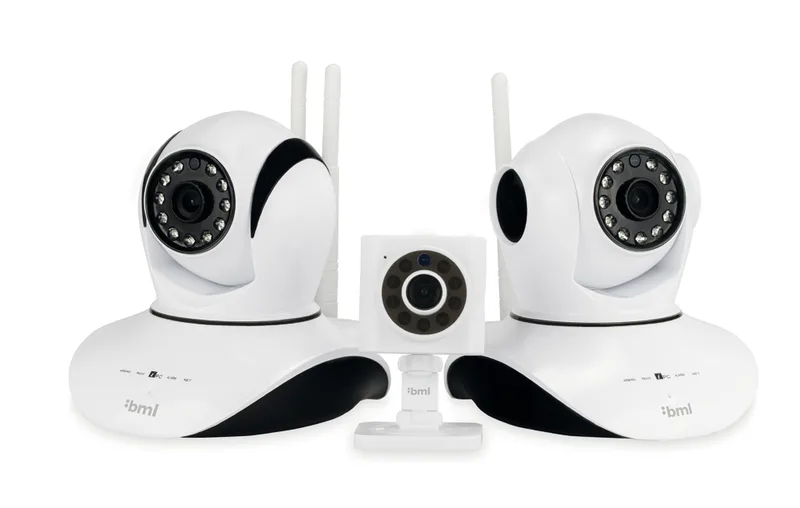
Pack Contents 1) Camera 2) AC adapter 3) Wall mount including screw 4) In the BML Safe HomeSet pack there are an extra 4 basic alarm detectors (2× magnetic doors sensors, smoke detector, motion sensor).

Safety when working with the device: 1. Carefully read the enclosed safety instructions. 2. To use the product, read the most recent version of the manual, which is available for download at: http://bml-electronics.com 3. Print errors reserved.

In dieser Anleitung genannte Seiten – Hersteller, Support und Downloads.
Besitzer und unser Team antworten in der Regel innerhalb eines Tages – und Ihre Frage hilft auch anderen weiter.
Stellen Sie die erste Frage — andere Nutzer oder unser Team antworten Ihnen.